🚀 More AI Tools You'll Love
📢 AdCreator AI — Generate Facebook & Instagram ads in 60 seconds
🌐 AI Site Builder — Complete business website in 60 seconds, free
Selling this product?
Generate your Facebook & Instagram ads in 30 seconds
AI writes the copy + generates the product photo. 5 free tries, no credit card.
📚 ScholarNet AI — AI study tools, Brain Battles & tutoring
Ultrawide vs 4K: Workspace Showdown
Last Updated: September 2026 by Prime Reviews Pro
📋 Table of Contents
- The Core Difference in 60 Seconds
- Ultrawide Monitors: The Panoramic Approach
- What You Actually Get
- Real Models Worth Considering
- Practical Downsides Nobody Mentions Upfront
- 4K Monitors: The Density Play
- Why Pixel Density Matters More Than You Think
- Real Models Worth Considering
- Head-to-Head Comparison
- Product Picks for Either Path
- Buying Guide: What to Look For in 2026
- 1. Resolution and Pixel Density
- 2. Panel Technology
- 3. Refresh Rate
- 4. Connectivity and Docking
- 5. Ergonomics and Mounting
- 6. Color Accuracy
- 7. Warranty and Dead Pixel Policy
- User Scenarios: Who Should Buy What
- Buy an Ultrawide If You…
- Buy a 4K Monitor If You…
- Avoid Both If You…
- FAQ
- Final Word
Two monitors. Same budget. Completely different philosophies. The ultrawide camp says one giant curved panel replaces a messy multi-monitor rig. The 4K camp says pixel density beats pixel quantity every time. Both sides have loud, confident arguments — and both are right, depending on what you actually do all day.
🏠 Get the Best Home Office Deals
Weekly deals + expert picks, free
Shop Related Products on Amazon
Shop Ultrawide 4K: Workspace Showdown on Amazon →
As an Amazon Associate I earn from qualifying purchases.
This isn’t a spec-sheet shouting match. We compare manufacturer specifications, summarize what owners consistently report in verified Amazon reviews, and score how authentic those review patterns appear to be. No lab coats, no “after six weeks of testing” claims — just the data you need before you drop $500 to $1,500 on the centerpiece of your home office.
If you’re building out a workspace in 2026, this decision affects everything downstream: your desk depth, your GPU, your arm mount, even how often you crane your neck. Let’s settle it properly.
The Core Difference in 60 Seconds
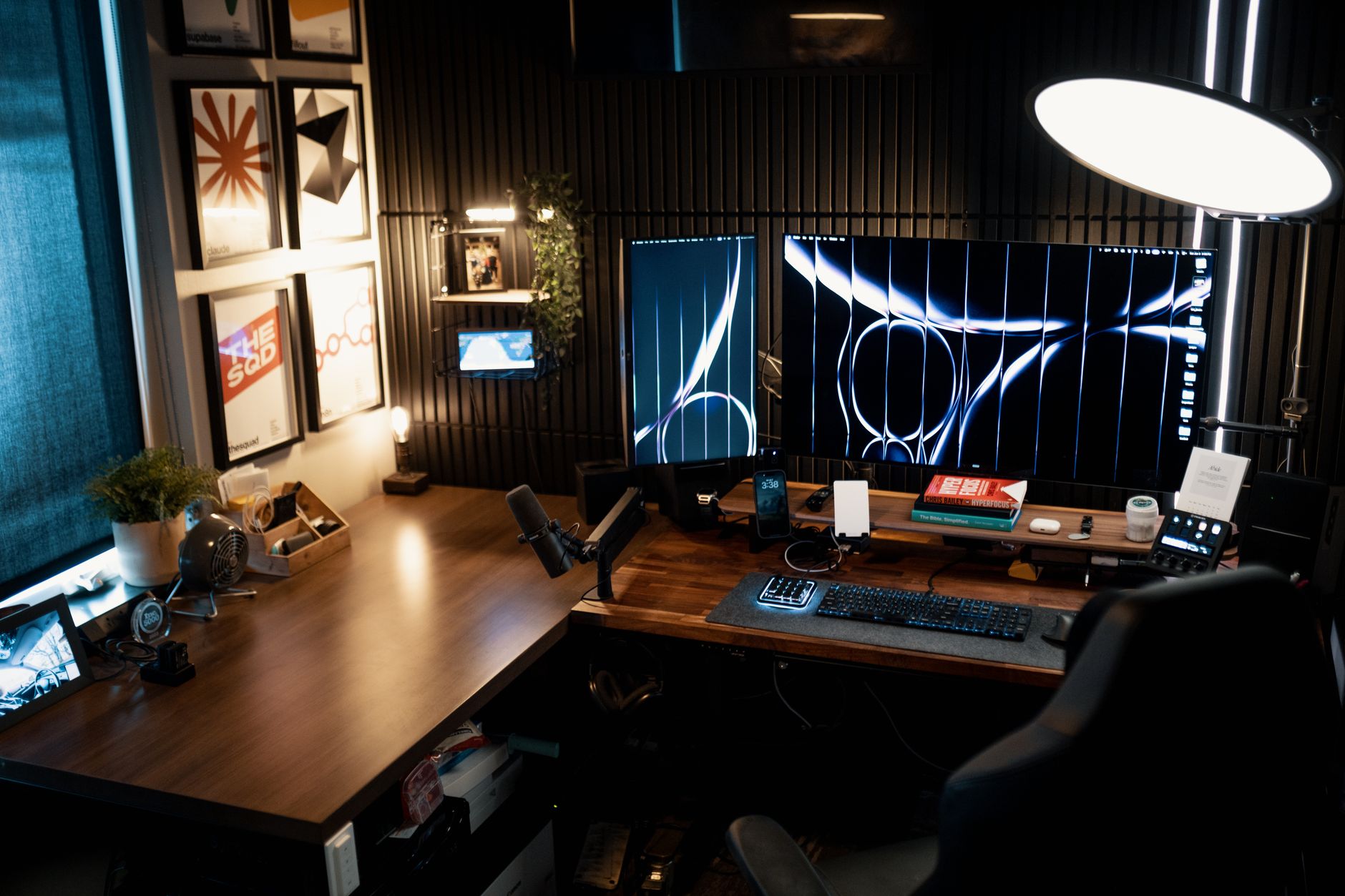
An ultrawide monitor (typically 34 to 49 inches, 21:9 or 32:9 aspect ratio) gives you one continuous horizontal canvas. A 4K monitor (usually 27 to 32 inches, 16:9, 3840×2160) gives you maximum sharpness in a conventional shape.
Ultrawide wins on immersion, side-by-side window layouts, and cable management. 4K wins on text clarity, color accuracy per dollar, and compatibility with basically everything ever made. The rest of this article is the nuance.
Ultrawide Monitors: The Panoramic Approach
What You Actually Get
A 34-inch 3440×1440 ultrawide is the sweet spot most buyers land on. The spec sheet lists roughly 110 PPI — comparable to a standard 27-inch 1440p panel, so text is fine but not razor-sharp. Step up to a 49-inch 5120×1440 super-ultrawide and you’re effectively staring at two 27-inch 1440p monitors fused together with no bezel in the middle.
The productivity argument is real: three full-width documents side by side, a timeline-based video editor that shows 40% more track, or a trading dashboard where nothing gets hidden behind a second window.
Real Models Worth Considering
Dell’s U3423WE (34-inch, 3440×1440, IPS Black) typically sits in the $700–$850 range and includes a USB-C hub with 90W power delivery — a genuine one-cable laptop setup. Owners on Amazon consistently praise the color uniformity and the built-in KVM, while a recurring complaint mentions the 60Hz refresh rate feeling dated for the price.
Samsung’s Odyssey OLED G9 (49-inch, 5120×1440, 240Hz) runs $1,100–$1,400 depending on promotions. The QD-OLED panel is stunning, but multiple owner reviews flag OLED burn-in anxiety for static taskbars and spreadsheet grids — a legitimate concern for 8-hour workdays.
Practical Downsides Nobody Mentions Upfront
Curved ultrawides need desk depth. A 49-inch model with a 1000R curve demands roughly 30 inches of viewing distance to avoid distortion at the edges. If your desk is 24 inches deep, you’ll feel it. Also check your GPU: driving 5120×1440 at high refresh rates is meaningfully harder than 3840×2160.
4K Monitors: The Density Play
Why Pixel Density Matters More Than You Think
A 27-inch 4K panel delivers about 163 PPI. That’s a 48% jump over a 34-inch 3440×1440 ultrawide. For coders, writers, and anyone staring at 10-point text for hours, that difference is not subtle — it’s the difference between leaning in and sitting back.
The National Institutes of Health has published research linking prolonged screen work to digital eye strain, and higher pixel density reduces the shimmer and edge-fringing that contributes to it. A 4K panel at 150% scaling gives you crisp text with comfortable sizing.
Real Models Worth Considering
Dell’s U2723QE (27-inch, 3840×2160, IPS Black) hovers around $550–$650 and is the default recommendation for a reason: 98% DCI-P3 coverage, 90W USB-C charging, and a four-port USB hub. Amazon reviewers repeatedly mention using it as a single-cable dock for a MacBook.
LG’s 32UN880-B Ergo (32-inch, 4K) runs $500–$600 and includes an articulated clamp arm instead of a stand — a clever solution for shallow desks. Owner reports note the arm is sturdy but the panel’s contrast is merely average for the price.
For a budget entry, the Dell U2722D (27-inch, 2560×1440) is not 4K, but at roughly $350 it’s the honest alternative if 4K pricing still stings. Just know you’re buying 108 PPI, not 163.
Head-to-Head Comparison
| Factor | Ultrawide (34″–49″) | 4K (27″–32″) |
|---|---|---|
| Pixel density | ~110 PPI (34″), ~109 PPI (49″) | ~163 PPI (27″), ~140 PPI (32″) |
| Horizontal workspace | Excellent | Good |
| Text sharpness | Good | Excellent |
| Desk depth needed | High (especially curved) | Moderate |
| Multi-source (KVM) | Common on business models | Common on business models |
| GPU demand | High | Moderate |
| Typical price | $500–$1,400 | $350–$900 |
Product Picks for Either Path
Whichever direction you go, the peripheral gear matters as much as the panel. Here are picks that work in both setups.
Dell U2723QE UltraSharp 27
- 3840x2160 IPS Black
- 98% DCI-P3
- 90W USB-C power delivery
- Built-in 4-port USB hub
Ergotron LX Desk Monitor Arm
- Supports up to 34-inch ultrawides
- 13-inch vertical lift
- 10-year warranty
- Constant Force technology
Logitech MX Master 3 Advanced Wireless Mouse
- MagSpeed electromagnetic scroll
- Multi-device switching
- App-specific customization
- 70-day battery
BenQ ScreenBar Monitor Light
- Auto-dimming
- Adjustable color temperature
- No screen glare
- USB powered
FlexiSpot E7 Standing Desk Frame
- 440 lb capacity
- Dual-motor lift
- Height memory presets
- Anti-collision detection
- ✅ One continuous canvas eliminates bezels
- ✅ Excellent for timelines, trading, and side-by-side layouts
- ✅ Often includes KVM and USB-C docking
- ✅ Immersive for gaming and video work
- ❌ Lower pixel density than 4K
- ❌ Demands deep desks and strong GPUs
- ❌ Curved panels can distort at the edges
- ❌ Premium pricing on large models
Buying Guide: What to Look For in 2026
1. Resolution and Pixel Density
Target at least 110 PPI for general work and 140+ PPI if you read dense text all day. Calculate it: divide horizontal pixels by diagonal inches, then account for aspect ratio. A 34-inch 3440×1440 lands around 110 PPI. A 27-inch 3840×2160 lands around 163 PPI.
2. Panel Technology
IPS and IPS Black offer the best color consistency and viewing angles for productivity. VA panels deliver deeper blacks but show smearing in fast motion. OLED is spectacular but carries burn-in risk for static UI elements — relevant if you’re staring at the same spreadsheet eight hours a day.
3. Refresh Rate
60Hz is fine for spreadsheets. 100Hz+ makes scrolling and cursor movement noticeably smoother and reduces perceived eye fatigue. 144Hz and above is mainly for gaming, though many buyers report they can’t go back once they’ve tried it.
4. Connectivity and Docking
USB-C with 90W or higher power delivery lets you run a laptop, monitor, and peripherals from one cable. Look for DisplayPort 1.4 or HDMI 2.1 for full-resolution high-refresh output, and confirm the USB hub includes enough downstream ports for your setup.
5. Ergonomics and Mounting
Check VESA compatibility (usually 100×100mm) before buying, and confirm the stand offers height, tilt, and swivel adjustment. For ultrawides above 40 inches, a heavy-duty arm like the Ergotron LX or a wall mount is often necessary — the included stand may not provide enough adjustment range.
6. Color Accuracy
If you touch photos, video, or design work, target 95%+ DCI-P3 or 99% sRGB coverage with a factory calibration report. For pure office work, sRGB coverage above 95% is plenty.
7. Warranty and Dead Pixel Policy
Dell, LG, and Samsung all offer three-year warranties on business-class panels, and several include zero-bright-pixel guarantees. Read the fine print — some policies only cover a minimum number of dead pixels before replacement.
User Scenarios: Who Should Buy What
Buy an Ultrawide If You…
- Work with timelines, DAWs, or video editing software that benefits from horizontal space
- Want to replace two monitors with one cable and zero bezels
- Trade stocks or manage dashboards where many columns must stay visible
- Have a desk at least 30 inches deep and a GPU that can drive 5120×1440
- Game competitively and want a wider field of view
Buy a 4K Monitor If You…
- Write, code, or read dense text for hours and want maximum sharpness
- Work in photo or video editing where color accuracy and pixel density matter
- Have a shallow desk and limited space
- Want to connect a console, Mac, and PC without resolution headaches
- Prefer a dual-monitor setup with a vertical secondary screen
Avoid Both If You…
- Work primarily on a laptop screen and only need occasional external display use
- Have a GPU older than roughly 2019 — check output support before buying
- Are on a sub-$300 budget; a solid 1440p panel is the smarter buy at that price
FAQ
Final Word
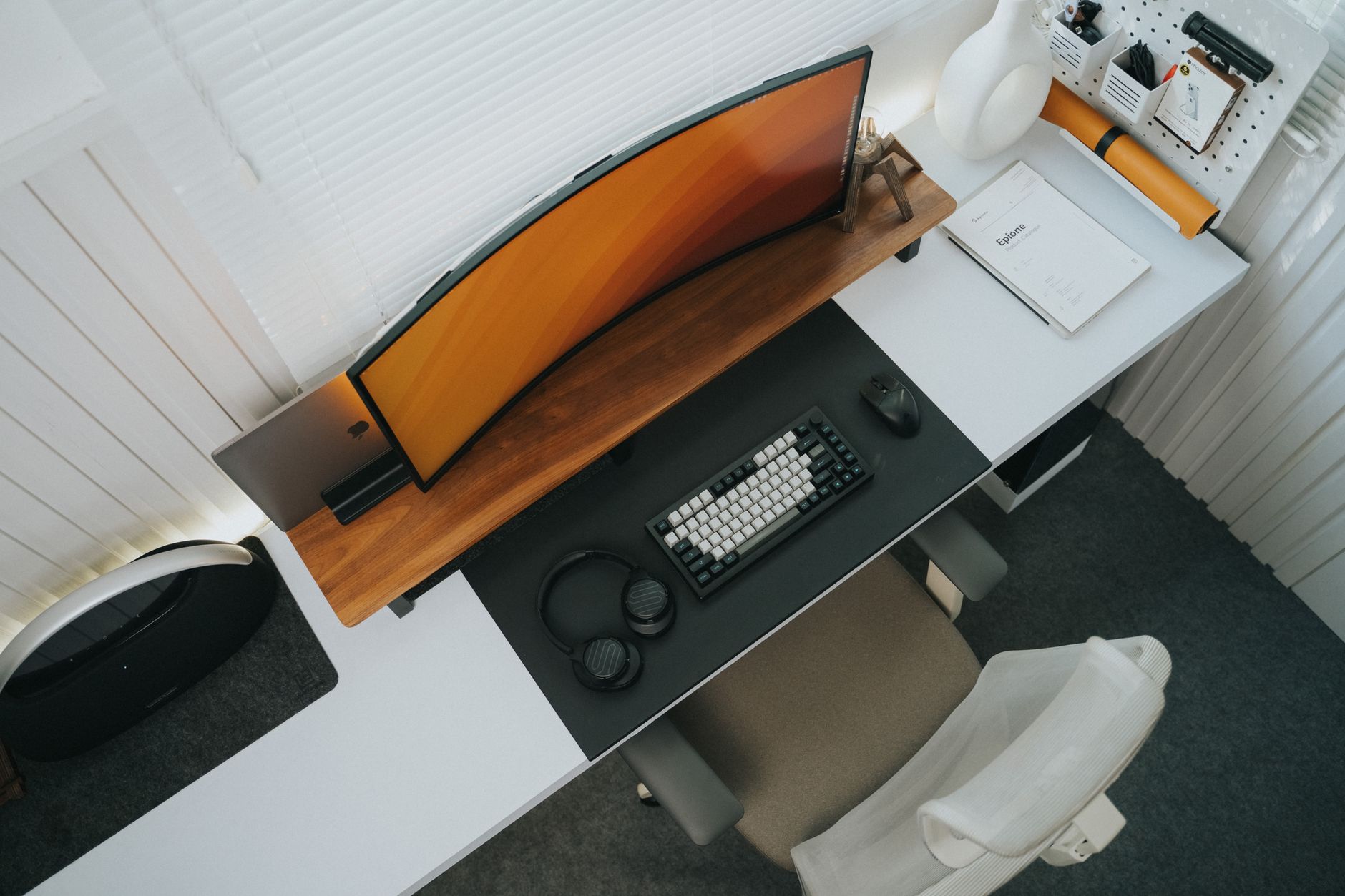
The ultrawide vs 4K debate has no universal winner, and anyone claiming otherwise is selling something. Match the panel to your work shape, verify your GPU and desk depth before checkout, and budget for a proper arm. Do those three things and either path lands you in a better workspace than you have now.
Kindle Unlimited gives you access to 4 million+ ebooks including most of the productivity, ergonomics, and home office titles we reference. First month is free.
Try Kindle Unlimited →For ergonomic guidance on monitor positioning and viewing distance, the OSHA computer workstation eTool remains a practical reference. For display-specific specifications, always check the manufacturer’s official product page before purchasing.
🚀 More AI Tools You'll Love
📢 AdCreator AI — Generate Facebook & Instagram ads in 60 seconds
🌐 AI Site Builder — Complete business website in 60 seconds, free
📚 ScholarNet AI — AI study tools, Brain Battles & tutoring