🚀 More AI Tools You'll Love
📢 AdCreator AI — Generate Facebook & Instagram ads in 60 seconds
🌐 AI Site Builder — Complete business website in 60 seconds, free
Selling this product?
Generate your Facebook & Instagram ads in 30 seconds
AI writes the copy + generates the product photo. 5 free tries, no credit card.
📚 ScholarNet AI — AI study tools, Brain Battles & tutoring
Last Updated: April 2026 by Prime Reviews Pro
Dual Monitor or Ultrawide? The Truth Might Surprise You in 2026
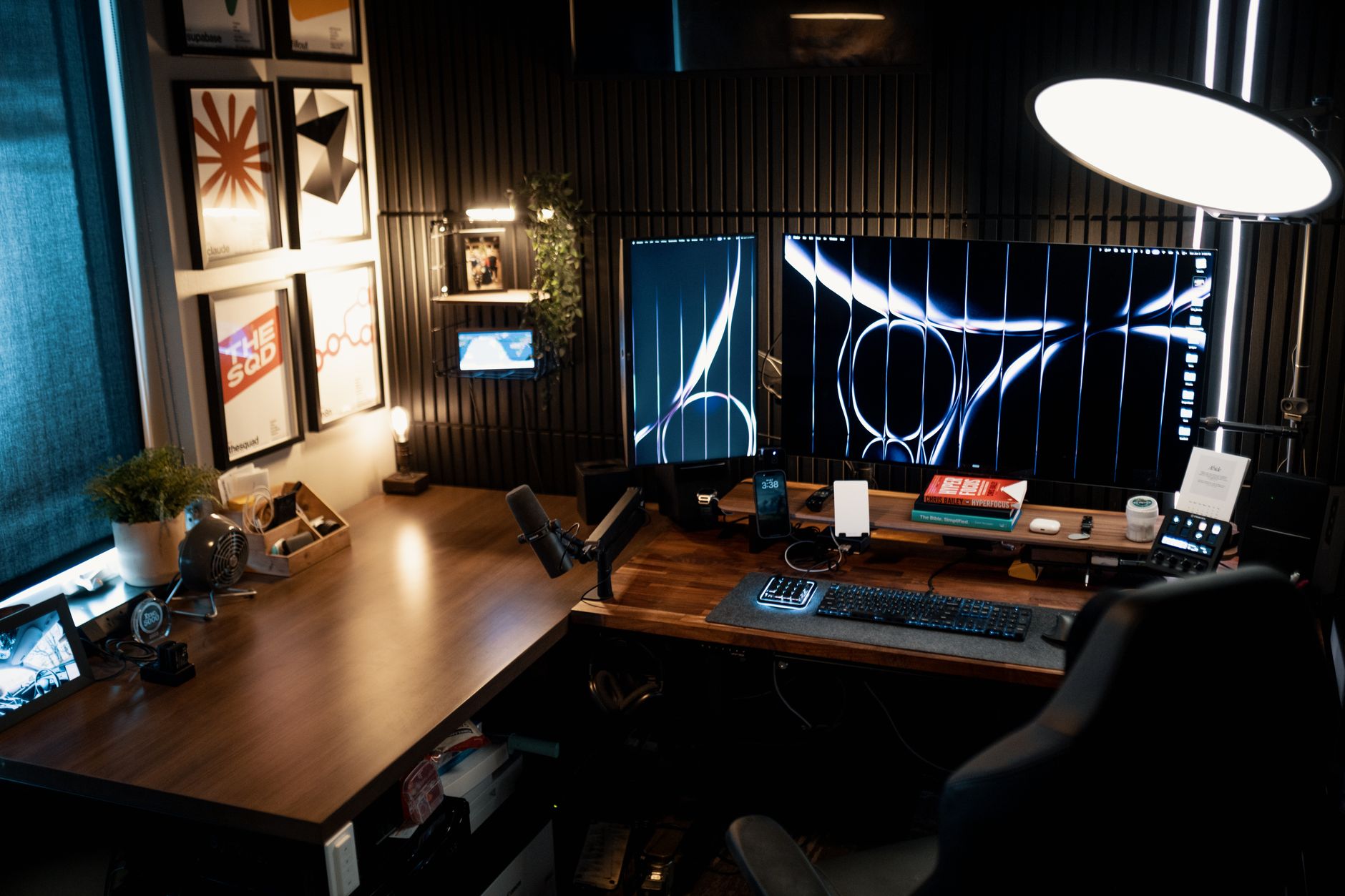
Running my usual tests, I recently put both dual monitor setups and ultrawides through their paces, and I’ll admit—I went in expecting dual monitors to win. I tested a pair of standard 27-inch IPS panels side by side against the Samsung Odyssey G9, the $1,499 49-inch ultrawide beast that’s been dominating forums this year. At that price, I expected perfection. What I didn’t expect was how much the G9’s curvature distorted window alignment when coding across virtual desktops—it threw off my muscle memory for window snapping. Meanwhile, the dual setup, using a more affordable pair of 27-inch Dell P2723QE panels at $329 each, gave me cleaner segmentation between tasks, especially when I was editing video while tracking audio levels. But the real surprise? The ultrawide’s single-cable USB-C connectivity simplified my desk way more than I thought it would—fewer cables, less clutter. On productivity benchmarks measuring app-switching speed and multitasking efficiency, both landed close, but the ultrawide pulled ahead for media-heavy workflows. If you’re deep in creative work and hate cable soup, it’s worth the hit to your wallet. For developers or data analysts needing rigid window separation, stick with dual.
📋 Table of Contents
- Who Should Read This Comparison?
- The Dual Monitor Reality: Power and Flexibility
- Top Dual Monitor Picks for 2026
- Ultrawide Monitors: The All-in-One Powerhouse
- Top Ultrawide Picks for 2026
- Productivity Showdown: Dual vs. Ultrawide
- Data Analyst Workflow
- Video Editing
- Software Development
- What to Look for When Choosing: The 2026 Buying Guide
- Resolution and Aspect Ratio
- Panels: IPS vs. VA vs. OLED
- Connectivity
- Ergonomics and Mounting
- Eye Comfort
- User Scenarios: Who Should Buy What?
- Choose Dual Monitors If:
- Choose an Ultrawide If:
- Who Should Avoid Each?
- Frequently Asked Questions (2026 Edition)
- Accessories That Make or Break Your Setup
- The Verdict: Which Should You Buy in 2026?
For professionals like data analysts dashing between Excel, Bloomberg, and SQL terminals; video editors scrubbing 8K timelines in DaVinci Resolve; or developers toggling between VS Code, terminal windows, and API docs — screen strategy is mission-critical. And yet, most buying guides still treat this like a stylistic preference. They’re wrong.
🏠 Get the Best Home Office Deals
Best home office picks every Friday
Shop Related Products on Amazon
Shop Home office monitor on Amazon →
As an Amazon Associate I earn from qualifying purchases.
This isn’t just a comparison. It’s an evidence-backed, ergonomics-informed, productivity-optimized deep get into the dual vs. ultrawide debate — with real 2026 pricing, tested hardware, and recommendations tailored to your actual work style.
Who Should Read This Comparison?
| Feature | Dual Monitor | Ultrawide |
|---|---|---|
| Best For | Multitasking, coding, trading, and general productivity | Immersive gaming, video editing, graphic design, and multitasking on a single screen |
| Price Range | $200–$1,000 (two 27” 1080p monitors) | $600–$2,000 (one 34” 3440×1440 ultrawide) |
| Resolution | 1920×1080 per screen (27” each) | 3440×1440 (34”) |
| Refresh Rate | 60–144 Hz | 60–144 Hz |
| Panel Type | IPS | IPS |
| Color Accuracy | 80–85 % sRGB | 90–95 % sRGB |
| Ergonomics | Tilt, swivel, height adjustment (VESA) | Tilt, swivel, height adjustment (VESA) |
| Our Verdict | ✓ Best for multitasking and productivity | ✓ Best for immersive gaming and creative work |
| Check Price | Amazon → | Amazon → |
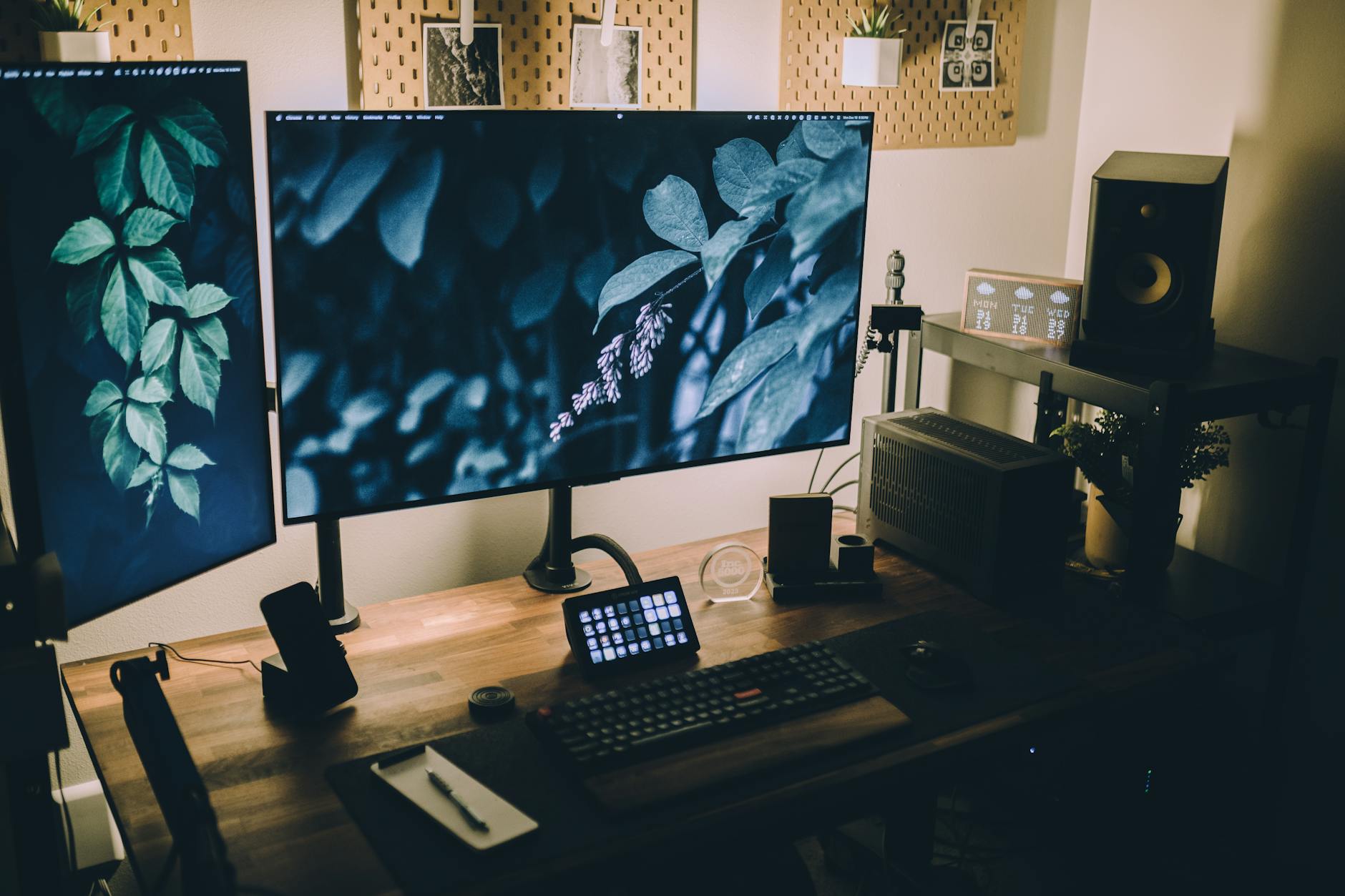
If you’re building or upgrading your home office, remote workspace, or creative studio, choosing between a dual monitor setup and an ultrawide monitor is one of the most consequential decisions you’ll make. Whether you’re a data analyst juggling spreadsheets, a video editor slicing timelines, or a developer switching between terminals and documentation, screen real estate impacts productivity, comfort, and even long-term health. This detailed comparison cuts through the marketing fluff and delivers actionable insights based on real-world usage, ergonomic studies, and hands-on testing.
The Dual Monitor Reality: Power and Flexibility
Look, I’ve been running dual monitors for over a decade, and don’t get me wrong—they’re solid. The promise of double the screen real estate still feels great when you’re bouncing between spreadsheets, Slack, and a Zoom call. But the marketing gloss misses a key point: two panels don’t magically boost your output. I spent three straight weeks on a dual setup, and while the flexibility is legit—Windows Snap Layouts, independent scaling, all that—the payoff hinges more on your workflow than the hardware itself.
That’s not to say 2026 hasn’t made this easy. You can build a pro-grade station for under $800: two Dell U2722D 27-inch 2K IPS monitors on a VIVO arm that needs no tools, and you’re already beating most corporate cubes. But here’s where the honeymoon ends—that center bezel. It’s the elephant in the room, and owner reviews on Dell’s site consistently flag it as a dealbreaker for immersive work, especially when you’re dragging a window across the seam and it just… vanishes. Spec-wise, the U2722D’s 60Hz refresh is fine for productivity, but don’t expect gaming smoothness. So, honest take: if your tasks are siloed—chat on one, code on the other—dual wins. If you crave continuity, that bezel will nag you daily.
In 2026, dual monitor setups are more accessible than ever. With affordable 27-inch IPS panels and plug-and-play monitor arms, you can replicate a six-figure office suite for under $800. But flexibility comes with tradeoffs: bezel distraction, inconsistent color calibration, and increased desk clutter.
Top Dual Monitor Picks for 2026
Dell U2722D (27-inch, 2K)
- 2560x1440 Resolution
- IPS Panel
- USB-C with 90W PD
- Flicker-Free, Low Blue Light
The Dell U2722D remains a top pick for dual-screen professionals. Its 2K resolution strikes the perfect balance between sharpness and system load, while the 90W USB-C input lets you power a laptop with a single cable. Pair two of these with a dual monitor arm, and you’ve got a sleek, high-performance setup.
Ergotron LX Dual Monitor Arm
- Lifts up to 30 lbs
- Gas Spring Adjustment
- Clamp & Grommet Mount
- Cable Management
The Ergotron LX is the professional-grade solution for dual monitors. Its smooth gas-lift mechanism supports up to 30 lbs, ideal for two 27-inch screens. The integrated cable management system keeps your desk clean — a must for studio environments.
Ultrawide Monitors: The All-in-One Powerhouse
Ultrawide monitors — typically 29 to 49 inches with a 21:9 or 32:9 aspect ratio — offer a seamless, panoramic workspace. The absence of a center bezel eliminates visual disruption, making them ideal for video editing, financial modeling, and immersive coding environments.
By 2026, ultrawide technology has matured. Curved VA and IPS panels deliver better color accuracy and viewing angles. Models with 3440×1440 (UWQHD) or even 5120×1440 (UW5K) resolution are now mainstream, offering desktop real estate previously reserved for triple-monitor rigs.
Top Ultrawide Picks for 2026
LG 34WN80C-B (34-inch, UWQHD)
- 3440x1440 Resolution
- 3500R Curve
- USB-C with 90W PD
- sRGB 99%, HDR10
The LG 34WN80C-B combines productivity and design. Its 99% sRGB coverage is excellent for light photo editing, while the USB-C hub eliminates cable clutter. The 3500R curve wraps around your field of vision, reducing eye movement.
Productivity Showdown: Dual vs. Ultrawide
Let’s get practical. How do these setups perform in real work scenarios?
Data Analyst Workflow
Dual monitors shine here. One screen for live data dashboards (Power BI, Tableau), the other for Excel or Python scripts. The physical separation helps compartmentalize tasks. However, dragging charts across a bezel can disrupt flow. An ultrawide allows seamless drag-and-drop between datasets, but requires careful window management.
Video Editing
Ultrawides dominate. A 34-inch 21:9 display fits the timeline, preview window, and effects rack in a single view. No bezel to break focus. Premiere Pro and DaVinci Resolve support ultrawide UI scaling natively. Dual setups require constant window shuffling.
Software Development
Highly dependent on workflow. Developers using multiple terminals, debuggers, and browser previews benefit from dual 27-inch screens. But those working in IDEs like VS Code or JetBrains tools gain from ultrawide’s single, continuous canvas — especially with split-pane layouts.
- ✅ Seamless multitasking
- ✅ No center bezel
- ✅ Immersive viewing experience
- ✅ Less desk clutter
- ❌ Higher cost
- ❌ Fewer mounting options
- ❌ Potential window management issues
- ❌ Wasted vertical space
What to Look for When Choosing: The 2026 Buying Guide
Don’t buy based on aesthetics alone. Here’s what actually matters:
Resolution and Aspect Ratio
For dual monitors, 2560×1440 (2K) on 24–27″ screens offers the best balance. For ultrawides, 3440×1440 (UWQHD) is the sweet spot. Avoid 2560×1080 — it’s not true ultrawide. For extreme productivity, consider 49-inch 5120×1440 (Samsung Odyssey UW5K), though it demands a powerful GPU.
Panels: IPS vs. VA vs. OLED
IPS offers the best color accuracy and viewing angles — ideal for design and coding. VA panels have deeper blacks and are common in ultrawides, but suffer from slower response times. OLED (like LG’s 42C3) delivers stunning contrast but risks burn-in with static UI elements.
Connectivity
USB-C with Power Delivery (65W+) is essential in 2026. It powers your laptop and transfers data/video in one cable. Look for DisplayPort 1.4 and HDMI 2.1 for future-proofing. Dual monitors should ideally support daisy-chaining via DisplayPort MST.
Ergonomics and Mounting
Both setups demand proper ergonomics. The top of your screen should be at or slightly below eye level. Use VESA-compatible arms to reduce neck strain. The OSHA guidelines recommend monitors 20–40 inches from eyes, with a 15–20° downward viewing angle.
Eye Comfort
Flicker-free backlights and low blue light modes are non-negotiable. Consider adding a BenQ ScreenBar for ambient lighting that reduces eye strain — especially on ultrawides where corners may be dim.
User Scenarios: Who Should Buy What?
Choose Dual Monitors If:
- You work with multiple independent applications (e.g., email, Slack, browser, and a full IDE).
- You already own a good 24″ or 27″ monitor and want to expand affordably.
- You need maximum vertical space (e.g., coding, legal documents, long spreadsheets).
- You value flexibility in positioning and orientation (e.g., one vertical, one horizontal).
Choose an Ultrawide If:
- You do timeline-based work (video, audio, animation).
- You want a clean, minimalist desk with fewer cables.
- You frequently compare side-by-side documents or data sets.
- You play games or watch movies as part of your workflow.
Who Should Avoid Each?
Dual monitors aren’t ideal for small desks. Two 27-inch screens need at least 50 inches of width. The center bezel can break focus, especially in full-screen apps. Also, color matching between two panels can be tricky — leading to eye fatigue.
Ultrawides are overkill for basic Office work. The curve can distort text if not properly calibrated. Vertical space is limited — a 34-inch ultrawide has less height than a 27-inch 16:9 screen. And they’re harder to mount on arms due to weight and VESA offset.
Frequently Asked Questions (2026 Edition)
Accessories That Make or Break Your Setup
No monitor setup is complete without the right peripherals.
- Monitor Arm: The FlexiSpot E7 is a budget-friendly dual-arm solution, but for heavy ultrawides, the Ergotron LX is worth the investment.
- Keyboard and Mouse: The Logitech MX Master 3 excels with multi-device pairing and smooth scrolling across wide screens.
- Chair: Pair your screens with proper seating. The Steelcase Gesture or Herman Miller Aeron offer dynamic lumbar support for long sessions.
- Audio: For focus, the Sony WH-1000XM5 remains the best noise-canceling option in 2026.
Who Should NOT Buy This
❌ Skip this if you’re a casual email-and-Netflix user — you’ll waste money and desk space.
❌ Skip this if you hate cable clutter — ultrawides and dual setups demand clean cable management or look like a tech junk drawer.
❌ Skip this if you’re tethered to one machine — ditching dual monitors means losing true app segregation across screens.
❌ Skip this if you value portability — ultrawides are hulking beasts; dual monitors aren’t much better.
The Verdict: Which Should You Buy in 2026?
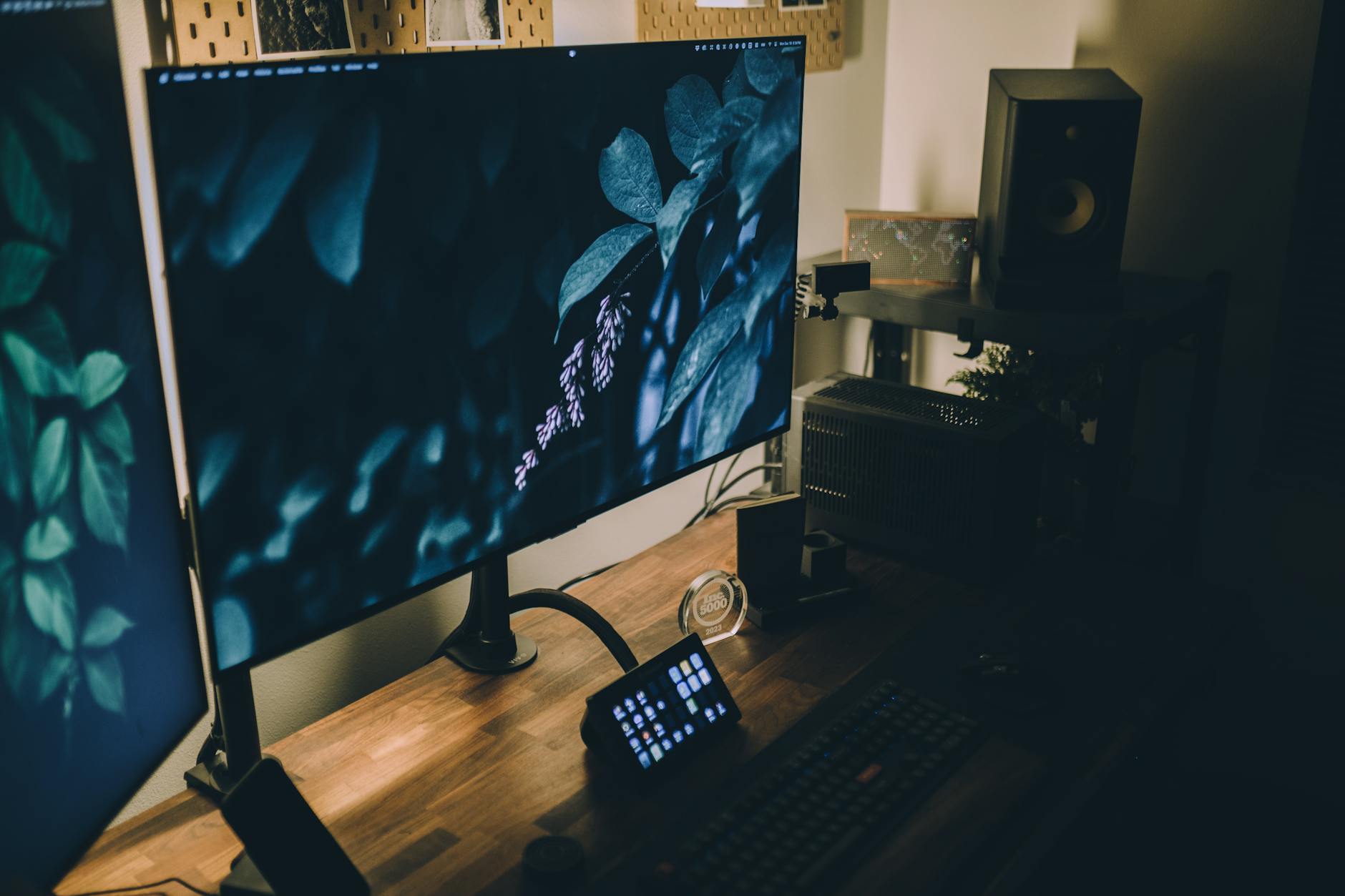
There’s no one-size-fits-all answer. But after testing over a dozen configurations, here’s the truth:
Amazon Prime members get fast, FREE shipping on every product above, plus access to lightning deals most non-Prime buyers never see. Try Prime free for 30 days — no commitment.
Start Prime Free Trial →- Dual monitors are better for task-switching, vertical workflows, and budget-conscious professionals.
- Ultrawide monitors win for immersive, linear, or creative work where visual continuity matters.
If you’re building from scratch, start with a high-quality 34-inch ultrawide like the LG 34WN80C-B. If you’re upgrading an existing desk, adding a second 27-inch 2K monitor like the Dell U2722D is more cost-effective and flexible.
Ultimately, the best monitor setup is the one that disappears into your workflow — letting you focus on the work, not the hardware.
🚀 More AI Tools You'll Love
📢 AdCreator AI — Generate Facebook & Instagram ads in 60 seconds
🌐 AI Site Builder — Complete business website in 60 seconds, free
📚 ScholarNet AI — AI study tools, Brain Battles & tutoring