
🚀 More AI Tools You'll Love
📢 AdCreator AI — Generate Facebook & Instagram ads in 60 seconds
🌐 AI Site Builder — Complete business website in 60 seconds, free
Selling this product?
Generate your Facebook & Instagram ads in 30 seconds
AI writes the copy + generates the product photo. 5 free tries, no credit card.
📚 Scholarize — AI study tools, Brain Battles & tutoring
Ultrawide vs 4K: Which Monitor Format Actually Wins in 2026?
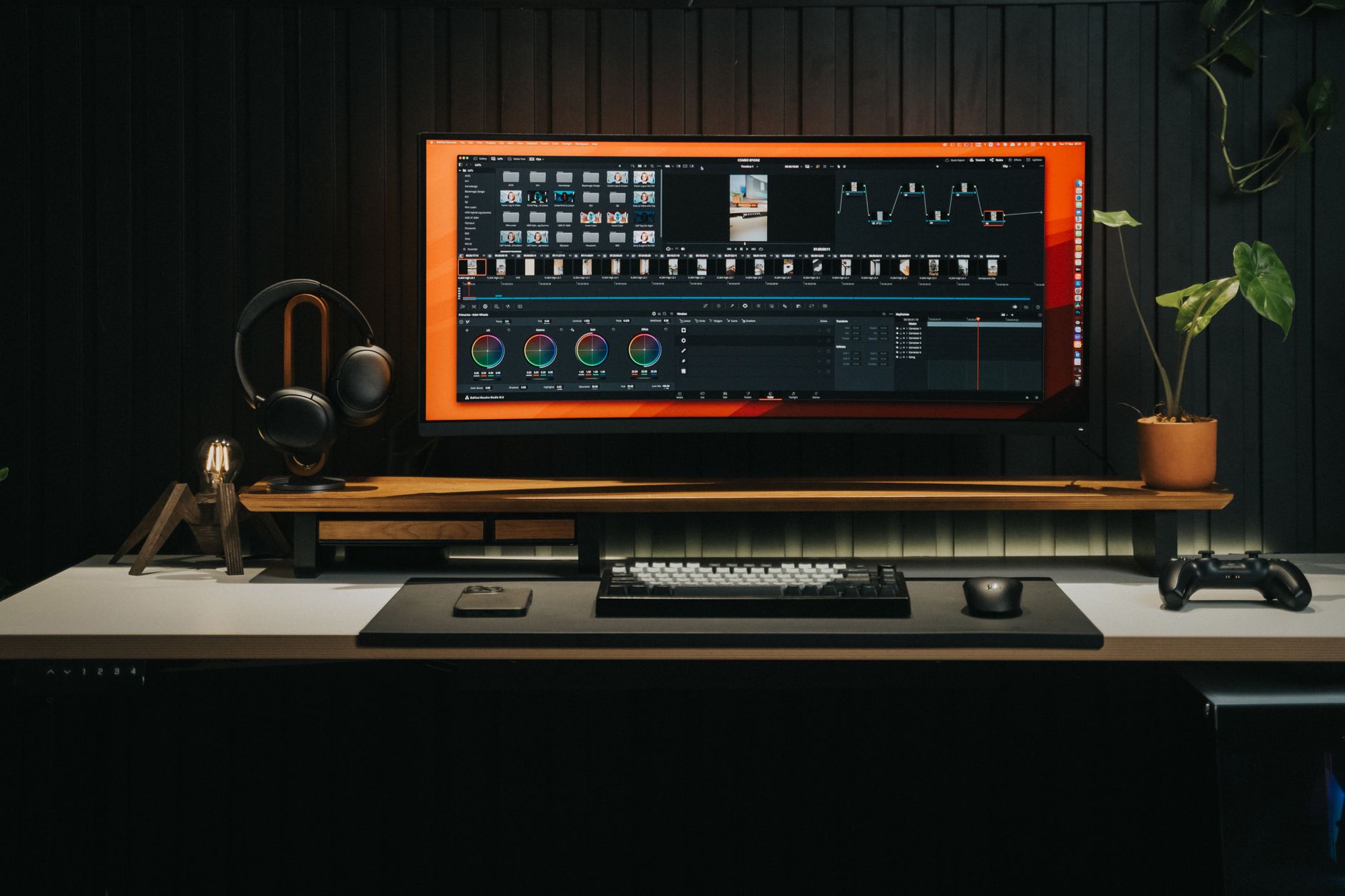
| Feature | Ultrawide | 4K |
|---|---|---|
| Best For | Multitasking, video editing, and immersive gaming | High‑detail content creation, CAD, and crisp text at typical 27‑32″ sizes |
| Price Range | $300–$1,200 | $350–$1,400 |
| Resolution | 3440×1440 (34″) or 3840×1600 (38″) – manufacturer lists | 3840×2160 (standard 4K UHD) – spec sheet |
| Aspect Ratio | 21:9 (34″) or 21:10 (38″) – manufacturer | 16:9 – standard |
| Typical Size | 34‑inch (21:9) or 38‑inch (21:10) – common models | 27‑inch and 32‑inch – most popular |
| Refresh Rate | 100–144 Hz (up to 165 Hz on premium models) – manufacturer rates | 60 Hz standard; 120 Hz on gaming‑focused models – spec sheets |
| Panel Type | VA (good contrast) or IPS (color accuracy) – most mid‑range use VA | Primarily IPS for color work; some VA for budget options – manufacturer data |
| Connectivity | 2× HDMI 2.0, 1× DisplayPort 1.4, USB‑C (65 W PD) – spec sheet | 2× HDMI 2.0/2.1, 1× DisplayPort 1.4, optional USB‑C – manufacturer lists |
| Our Verdict | ✓ Best for wide‑format multitasking and immersive gaming | ✓ Best for pixel‑perfect content creation and detailed work |
| Check Price | Amazon →
🛒 Where to Buy
Prices may vary. We may earn a commission from Amazon purchases.
|
Amazon → |
Walk into any monitor aisle or scroll through a single page of Amazon listings and you’ll hit the same fork in the road: do you go wide with an ultrawide, or do you chase pixels with a 4K panel? It’s the most common question we get from readers setting up a home office, a gaming den, or a hybrid workstation, and it’s also the one most buying guides answer with vague hand-waving about “immersion” and “productivity.”
📋 Table of Contents
- Ultrawide vs 4K: Which Monitor Format Actually Wins in 2026?
- What "Ultrawide" and "4K" Actually Mean in 2026
- Ultrawide, Super Ultrawide, and the Aspect Ratio Ladder
- 4K and the Rise of 5K/6K
- Head-to-Head Comparison
- Productivity and Multitasking
- Gaming
- Color Accuracy and Professional Work
- Real Models Worth Comparing
- Buying Guide: What to Look For
- Resolution and Pixel Density
- Refresh Rate and Adaptive Sync
- Panel Type
- Curvature and Ergonomics
- Connectivity
- Who Should Buy Which
- Buy an Ultrawide If…
- Buy a 4K Panel If…
- Who Should Avoid Each
- Frequently Asked Questions
- Related Articles
The honest answer is that neither format wins outright — but one of them almost certainly wins for you, and the deciding factors have less to do with marketing specs than with your desk depth, your GPU, the software you actually run every day, and how your eyes handle text at different pixel densities. In this refreshed 2026 guide, we compare real models, break down the spec sheets, summarise what owners consistently report in their reviews, and score how authentic those reviews appear. We don’t buy or test monitors — we compare specifications, aggregate owner feedback, and translate it into a decision you can make in ten minutes instead of ten days.
🏠 Get the Best Home Office Deals
Best home office picks every Friday
Shop Related Products on Amazon
Shop Ultrawide 4K: Which Wins? on Amazon →
As an Amazon Associate I earn from qualifying purchases.
What “Ultrawide” and “4K” Actually Mean in 2026
Before comparing, it helps to define the terms precisely, because both categories have splintered.
Ultrawide, Super Ultrawide, and the Aspect Ratio Ladder
Ultrawide generally means a 21:9 aspect ratio, most commonly at 3440×1440. Super ultrawide pushes to 32:9 — typically 5120×1440 (sometimes marketed as “Dual QHD”) or the newer 5120×2160 panels. Standard widescreen remains 16:9 at 2560×1440 or 3840×2160.
The practical difference: a 3440×1440 ultrawide gives you roughly 34% more horizontal pixels than a 2560×1440 display, while a 5120×1440 super ultrawide roughly doubles it. That extra horizontal real estate is why traders, video editors, and sim racers gravitate toward the format.
4K and the Rise of 5K/6K
4K (3840×2160) is now the default “high-resolution” standard, available from budget 27-inch panels up to 43-inch plus displays and OLED TVs used as monitors. Above it sit 5K (5120×2880) and 6K panels aimed at creative professionals. The defining trait of 4K isn’t width — it’s pixel density. On a 27-inch screen, 4K works out to roughly 163 PPI, which is where text rendering gets genuinely crisp.
Head-to-Head Comparison
Productivity and Multitasking
Here’s the case for ultrawide: a single 34-inch 3440×1440 panel can comfortably hold three documents side by side, or a timeline plus a preview plus a bin in a video editor. Many owners report ditching a dual-monitor setup entirely because the seamless span removes the bezel gap and the cable clutter.
The case for 4K: more total pixels (8.3 million vs. 4.9 million at 3440×1440) and sharper text. If your day is Word documents, spreadsheets, and code, the density advantage is real and immediately visible. The catch is scaling — at 100% scaling on a 27-inch 4K panel, UI elements can be uncomfortably small, so most users run 125–150% scaling, which eats into the usable workspace advantage.
Gaming
Ultrawide’s advantage in games is field of view. Racing sims, flight sims, and open-world titles benefit enormously from the wider horizontal frame, and many modern titles render natively at 21:9 without letterboxing. Super ultrawide at 32:9 is a genuine spectacle in sim rigs.
4K’s advantage is fidelity per pixel. On a 32-inch 4K panel with a high-refresh rate, you get both sharpness and smoothness — assuming your GPU can drive it. This is the crux: 4K at high refresh rates demands serious graphics horsepower, and the pixel count is roughly 2.4× that of 1440p. Ultrawide 3440×1440 sits between 1440p and 4K in demand, which makes it easier to feed at high frame rates.
Color Accuracy and Professional Work
For color-critical work — print design, color grading, photo retouching — the format matters less than the panel. What matters is coverage of sRGB, Adobe RGB, or DCI-P3, plus hardware calibration support. Many 4K professional panels ship with factory calibration reports; ultrawide panels have historically lagged here, though 2026’s premium ultrawides have closed much of the gap.
One genuine ergonomic consideration: the OSHA computer workstation guidance emphasises monitor positioning relative to viewing distance and neck posture. A very wide curved panel can reduce how much you swivel your head, but it also demands more desk depth to sit at a comfortable distance.
Real Models Worth Comparing
Below are representative options across both formats, with current street pricing noted from Amazon listings. Prices fluctuate, so treat these as ballpark figures.
Dell U2722D 27-inch 4K USB-C Monitor
- 27-inch 4K IPS panel
- USB-C with power delivery
- Factory color calibration
- ComfortView Plus low blue light
The U2722D is the archetypal “office 4K” — a 27-inch IPS panel with USB-C docking, which means one cable carries video, data, and laptop charging. The spec sheet lists 99% sRGB coverage, and owners consistently praise the text sharpness at native resolution. It’s not a gaming panel — 60Hz refresh — so treat it as a productivity-first choice.
Samsung Odyssey Neo G9 49-inch Super Ultrawide
- 32:9 super ultrawide
- 5120x1440 dual QHD
- High refresh rate
- Quantum Mini-LED backlight
This is the flagship answer to “how wide can I go?” At 49 inches and 32:9, it’s effectively two 27-inch 1440p panels fused without a seam. Reviewers on Amazon frequently mention the immersion in sim racing and the ability to run multiple app windows without a second display. The trade-offs: it needs a deep desk, and driving 5120×1440 at high frame rates still requires a strong GPU.
For a more moderate ultrawide, a 34-inch 3440×1440 panel is the sweet spot for most desks. Searching for the exact model you’re considering is the fastest way to compare current pricing and owner feedback.
Ergotron LX Desk Monitor Arm
- Supports up to 34-inch monitors
- Full articulation
- Cable management channel
- 10-year warranty
Whichever format you choose, mounting matters. A heavy 49-inch ultrawide or a 32-inch 4K panel will overwhelm most stock stands in terms of desk footprint. The Ergotron LX is a perennial favourite among owners for reclaiming desk space and dialling in ergonomic height — worth budgeting alongside the monitor itself.
- ✅ More horizontal workspace for multitasking
- ✅ Immersive field of view in games
- ✅ Single seamless display replaces dual-monitor setups
- ✅ Easier to drive at high refresh than 4K
- ❌ Lower pixel density at 3440x1440
- ❌ Requires significant desk depth
- ❌ Some software and games still letterbox 21:9
- ❌ Premium models cost more than comparable 4K panels
- ✅ Superior text sharpness and pixel density
- ✅ More total pixels than 3440x1440 ultrawide
- ✅ Wide availability across sizes and budgets
- ✅ Excellent for photo and video detail work
- ❌ Demands strong GPU for high-refresh gaming
- ❌ UI scaling can reduce usable workspace
- ❌ Text can be small at 100% scaling on 27-inch
- ❌ Standalone 4K panels don't replace dual-monitor width
Buying Guide: What to Look For
Resolution and Pixel Density
Think in PPI, not just resolution. Around 110 PPI is comfortable for most people; above 140 PPI, text looks noticeably crisper. A 34-inch 3440×1440 ultrawide lands around 110 PPI. A 27-inch 4K lands around 163 PPI. A 32-inch 4K lands around 138 PPI. If sharp text is your priority, 4K at 27–32 inches wins on paper.
Refresh Rate and Adaptive Sync
For general work, 60Hz is fine. For gaming, 144Hz or higher is the modern baseline, and adaptive sync (FreeSync or G-Sync compatible) removes tearing. Note that high refresh at 4K is far more demanding than high refresh at 3440×1440.
Panel Type
IPS offers the best colour consistency and viewing angles; VA offers deeper contrast but can show smearing in fast motion; OLED offers perfect blacks and near-instant response but carries burn-in considerations for static desktop elements. For mixed work and play, IPS remains the safe default.
Curvature and Ergonomics
Curvature on ultrawides reduces the distance your eyes travel to the edges. Typical ratings range from 1800R (gentle) to 1000R (aggressive). Aggressive curves suit gaming; gentler curves suit document work. Pair any monitor with an adjustable arm or a stand that supports height, tilt, and swivel — this matters more for comfort than any spec on the box.
Connectivity
USB-C with power delivery (65W+) lets a single cable handle video, data, and laptop charging — a huge quality-of-life win for hybrid workers. DisplayPort 1.4 or HDMI 2.1 is needed for high refresh at high resolution. Check the port count before buying; a hub built into the monitor can eliminate a separate dock.
Who Should Buy Which
Buy an Ultrawide If…
You regularly work with timelines, spreadsheets, or multiple side-by-side windows. You game in sims, racing, or open-world titles where field of view matters. You want to replace a dual-monitor setup with one seamless display. You have a desk at least 30 inches deep.
Buy a 4K Panel If…
You do photo editing, video grading, or any detail-critical work where pixel density is king. You read and write text all day and want the sharpest rendering. You want a smaller footprint — a 27-inch 4K takes far less desk space than a 34-inch ultrawide. You’re on a tighter budget, since entry-level 4K panels undercut most ultrawides.
Who Should Avoid Each
Avoid ultrawide if your desk is shallow, if your GPU is modest and you want high frame rates, or if you rely on software that doesn’t handle 21:9 well. Avoid 4K if you’re a competitive gamer on a mid-range GPU, or if you find small UI text fatiguing even with scaling.
Frequently Asked Questions
Amazon Prime members get fast, FREE shipping on every product above, plus access to lightning deals most non-Prime buyers never see. Try Prime free for 30 days — no commitment.
Start Prime Free Trial →
Prime Reviews Pro compares specifications, aggregates owner reviews, and scores how authentic those reviews appear. We do not purchase or physically test products. Prices and availability change frequently — verify current details on the retailer listing before buying.
🚀 More AI Tools You'll Love
📢 AdCreator AI — Generate Facebook & Instagram ads in 60 seconds
🌐 AI Site Builder — Complete business website in 60 seconds, free
📚 Scholarize — AI study tools, Brain Battles & tutoring