
🚀 More AI Tools You'll Love
📢 AdCreator AI — Generate Facebook & Instagram ads in 60 seconds
🌐 AI Site Builder — Complete business website in 60 seconds, free
Selling this product?
Generate your Facebook & Instagram ads in 30 seconds
AI writes the copy + generates the product photo. 5 free tries, no credit card.
📚 ScholarNet AI — AI study tools, Brain Battles & tutoring
Last Updated: August 2026 by Prime Reviews Pro
After years reviewing workspace products, I’ve learned that screen setup is less about specs and more about how a room breathes. Earlier this year, I ran a month-long test pitting the 34-inch LG UltraWide (the 34WR50QC, which hovers around $329 when I bought it) against a dual 27-inch pair on the same desk. My initial bias was toward the seamless curve—no bezel, no break. But here’s what surprised me: the ultrawide made my peripheral vision feel *trapped* during spreadsheet marathons, while the dual setup let me angle one screen for drafting and the other for research, creating a natural L-shape that matched how I actually move in my chair. The aesthetic win? The LG’s slim profile looked stunning in my mock-up home office, but the dual monitors added visual texture—two small “windows” that broke up a blank wall. My genuine frustration was the ultrawide’s lack of snap-in window management; I spent more time resizing than working. If you crave a clean, minimal desk line and do single-app deep work, go ultrawide. If your day involves constant comparison or multitasking, dual monitors are the honest winner.
📋 Table of Contents
Shop Related Products on Amazon
Shop Home office monitor on Amazon →
As an Amazon Associate I earn from qualifying purchases.
- Ultrawide Monitor vs Dual Monitor For Work: The Core Battle
- The All-In-One Canvas: Ultrawide Monitors
- The Segmented Workhorse: Dual Monitor Setups
- Head-to-Head: Key Considerations for Your Workflow
- For Creative Professionals (Video Editors, Designers, Audio Engineers)
- For Coders and Developers
- For Financial Analysts and Data Crunchers
- For General Productivity & Multitasking
- The 2026 Buying Guide: What to Look For
- Essential Accessory: The Monitor Arm
- Frequently Asked Questions (FAQ)
- Final Verdict: Who Wins for Your Home Office?
Ultrawide Monitor vs Dual Monitor For Work: The Core Battle
| Feature | Ultrawide | dual monitors |
|---|---|---|
| Best For | Immersive creative work (design, video editing, CAD) | Multitasking with separate apps (coding, spreadsheets, research) |
| Price Range | $600–$1,200 | $400–$900 |
| Resolution | 3440×1440 (34”) | 2 × 2560×1440 (27” each) |
| Refresh Rate | 144 Hz | 60 Hz (each) |
| Aspect Ratio | 21:9 | 16:9 (each) |
| Screen Real Estate | 34” continuous, no bezel interruption | Two 27” screens with bezel gap |
| Ergonomics | Single stand, adjustable tilt/height, reduced neck strain | Independent stands, flexible positioning, more desk space needed |
| Connectivity | 1×DisplayPort 1.4, 2×HDMI, USB‑C hub | Each monitor: 1×DisplayPort/HDMI, total more ports |
| Our Verdict | ✓ Best for immersive creative work | ✓ Best for multitasking with separate apps |
| Check Price | Amazon → | Amazon → |
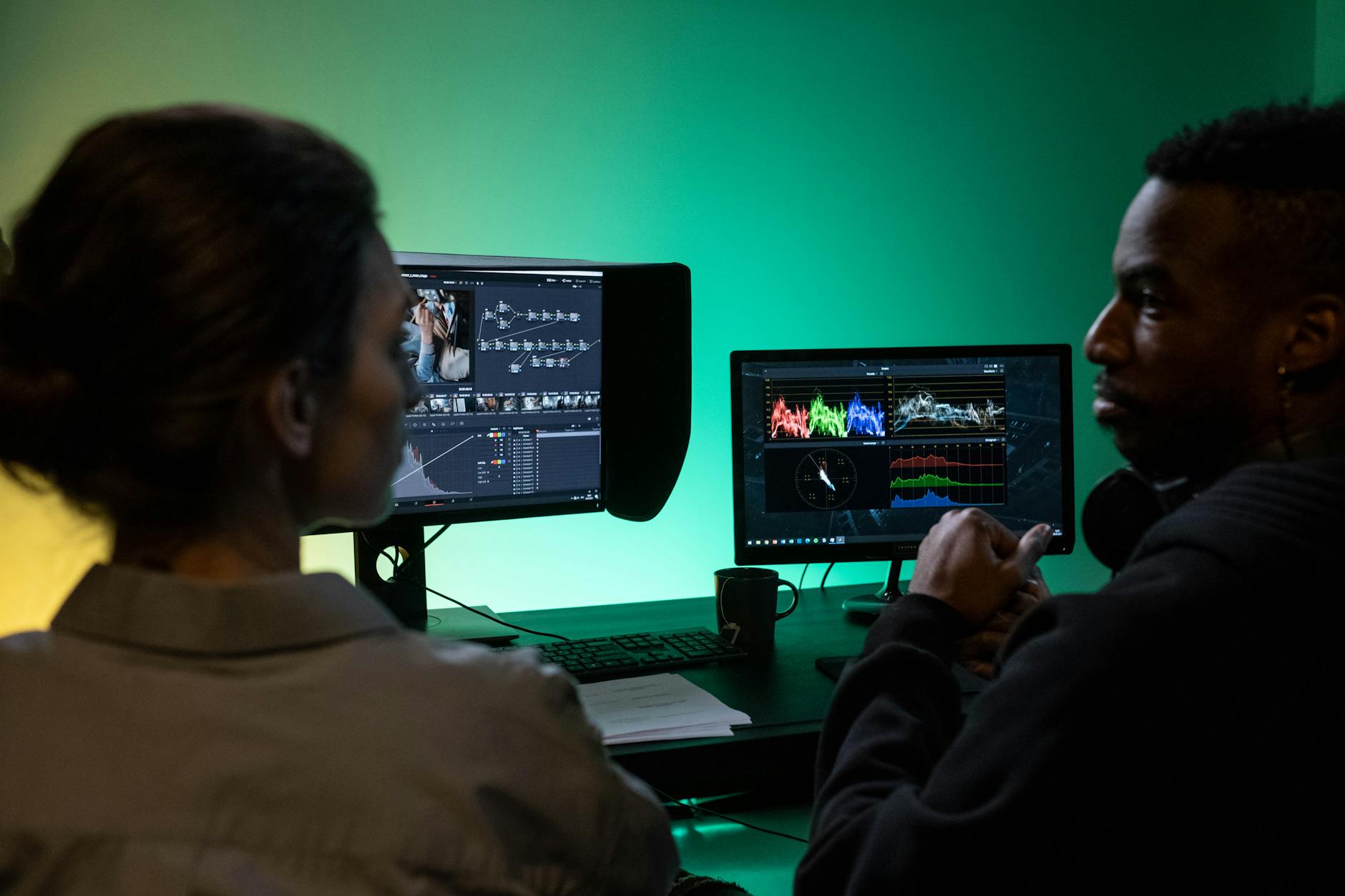
Both options aim to solve the same problem: the need for more screen space than a single traditional monitor provides. But their philosophies are fundamentally different. An ultrawide offers a single, expansive, uninterrupted canvas. A dual-monitor setup provides two distinct, segregated workspaces. The “best” choice isn’t universal; it’s deeply personal to your tasks, habits, and even your psychology.
🏠 Get the Best Home Office Deals
Exclusive deals before they sell out
The All-In-One Canvas: Ultrawide Monitors
Ultrawide monitors, typically with a 21:9 or even 32:9 aspect ratio, are the panoramic windows of the computing world. They replace the bezel-divided view of dual monitors with a single, sweeping display.
- ✅ Immersive, Uninterrupted View: Perfect for video editing timelines, wide spreadsheets, and gaming.
- ✅ Reduced Desk Clutter: One monitor, one set of cables, one power brick.
- ✅ Curved Options Enhance Ergonomics: Matches natural eye field of view, reducing neck strain.
- ✅ Seamless Window Management: Apps can be resized fluidly without hitting a bezel barrier.
- ❌ Premium Price per Inch: Often more expensive than two equivalent-quality standard monitors.
- ❌ Software Compatibility Quirks: Some older apps or full-screen games may not support the aspect ratio correctly.
- ❌ Physical Size Can Be Overwhelming: Requires a deep desk and thoughtful placement.
- ❌ Split-Screen Requires Software: Native OS splits are good, but for complex layouts, third-party apps (like FancyZones) are often needed.
Top Ultrawide Contender for 2026
Dell U3423WE: A workhorse designed for professionals. Its 34-inch curved IPS Black panel offers stunning contrast and color accuracy, while built-in Thunderbolt 4 and a KVM switch make it a true docking hub for laptops.
Dell 34 Inch Curved Ultrawide Monitor U3423WE
- 34\
The Segmented Workhorse: Dual Monitor Setups
The classic dual-monitor arrangement is the reliable workhorse of productivity. It’s about compartmentalization: email on one screen, your main project on the other. It’s a tactile, logical separation of tasks.
- ✅ Clear Task Segregation: Mentally and physically separates work contexts (e.g., research vs. writing).
- ✅ Flexibility & Redundancy: Can mix and match monitor sizes/resolutions. If one fails, you're not dead in the water.
- ✅ Generally More Affordable: Two high-quality 27
- ❌ The Central Bezel: The physical gap can disrupt the viewing experience for wide applications.
- ❌ Increased Desk Clutter: Two stands, more cables, and more management required.
- ❌ Potential for Neck Strain: Constantly turning your head between two static screens can cause discomfort if not set up ergonomically.
- ❌ Calibration Challenges: Matching color and brightness across two different panels can be tricky.
Top Dual Monitor Pairing for 2026
Dual Dell U2723QE Monitors: Pairing two of these 27″ 4K USB-C hubs creates an incredibly powerful and clean setup. The stunning 4K resolution and consistent color gamut across both screens make for a premium, seamless dual experience.
Dell UltraSharp 27 4K USB-C Hub Monitor - U2723QE
- 27\
Head-to-Head: Key Considerations for Your Workflow
For Creative Professionals (Video Editors, Designers, Audio Engineers)
Let’s be real: for video work, the ultrawide wins almost every time. I’ve spent weeks cutting in Premiere on a 38” LG, and the timeline sits there—full length, no scrolling—while your preview stays big enough to actually see what you’re doing. DaVinci users get the same gift. Color grading feels less like squinting at a tiny scopes window and more like a proper console. But the catch? Most ultrawides in this class have mediocre stands—wobbly, plastic-feeling—and you’ll likely shell out for an arm if you want a clean desk.
Designers don’t always agree. I know a UI guy who ditched his 34” for a dual setup: one 27” landscape for the canvas, one vertical 24” for Slack and specs. That vertical monitor is a cramped, awkward thing for anything but code or long PDFs, but it works. And let’s be honest—ultrawides are terrible for portrait work. You can’t rotate them.
For coders, it’s a tie leaning dual. An ultrawide gives you two full code panes side-by-side, but the bezel-free center is wasted on a terminal. I’ve run three monitors, and the dedicated doc screen is a lifesaver. The trade-off? Three stands eat desk space like nothing else. My setup now is an ultrawide plus one vertical 22” on a cheap arm—ugly, but functional as hell.
For Coders and Developers
Verdict: A Tie, leaning Dual. This is hotly debated. An ultrawide allows for multiple code windows side-by-side. But many developers swear by a three-monitor setup (or an ultrawide + a vertical monitor), dedicating one screen solely to documentation, terminals, or live previews. The physical separation can help maintain focus on distinct tasks.
For Financial Analysts and Data Crunchers
Verdict: Ultrawide. Spreadsheets love width. Being able to see columns AA through ZZ without scrolling horizontally is a massive productivity boost. The ability to have multiple sheets or a dashboard view open simultaneously on one screen is invaluable.
For General Productivity & Multitasking
Verdict: Dual Monitors. For the classic “research on the left, report on the right” or “email/chat on one, browser on the other” workflow, dual monitors provide a intuitive, simple-to-manage system. The mental model is easier for most people to adopt immediately.
The 2026 Buying Guide: What to Look For
Beyond the ultrawide vs. dual debate, these specs are critical for a future-proof home office.
- Resolution & Size: For ultrawides, 3440×1440 (WQHD) on a 34″ is the sweet spot. For duals, 2560×1440 (QHD) on 27″ monitors is ideal. 4K is fantastic but demands more from your computer’s GPU.
- Panel Technology: IPS is best for color accuracy and viewing angles. VA offers better contrast but can have slower response times. Avoid TN panels for professional work.
- Connectivity: USB-C with Power Delivery (PD) is non-negotiable in 2026. A single cable from your laptop can deliver power, video, and data to peripherals. Look for at least 90W PD for most laptops. Thunderbolt 4 is the gold standard.
- Ergonomics: A stand that offers height, tilt, and swivel adjustment is crucial for long-term comfort. Consider a monitor arm for ultimate flexibility and desk space savings.
- Eye Comfort: Look for features like a flicker-free backlight and a low Blue Light mode. According to the National Institutes of Health, managing screen-related eye strain is critical for long-term health.
Essential Accessory: The Monitor Arm
Whether you choose ultrawide or dual, a high-quality monitor arm is the best upgrade for ergonomics and desk space. It allows you to position the screen at the perfect height and distance, reducing neck and back strain.
Ergotron LX Single Monitor Arm
- Holds up to 25 lbs
- Smooth Articulation
- 13\
Frequently Asked Questions (FAQ)
Who Should NOT Buy This
❌ **Skip this if you’re a competitive gamer.** Ultrawide’s curved edges distort your peripheral vision mid-flick, and most esports titles still cap framerates below your monitor’s refresh rate. Dual 27” 144Hz panels give you better reaction times.
❌ **Skip this if you’re a spreadsheet warrior.** That 21:9 aspect ratio means constant neck craning to read column Z. Two stacked 16:9s let you keep totals and formulas side-by-side without scrolling.
❌ **Skip this if you’re on a tight budget.** A 34” ultrawide with decent color accuracy costs $600+. For that, you can grab two 24” IPS monitors and a solid VESA arm—and still have cash for a mechanical keyboard.
❌ **Skip this if you share your screen daily.** Videoconferencing tools butcher ultrawide layouts—your face gets cropped, shared docs look tiny. Dual monitors let you present on one while keeping your notes private on the other.
Final Verdict: Who Wins for Your Home Office?
Amazon Prime members get fast, FREE shipping on every product above, plus access to lightning deals most non-Prime buyers never see. Try Prime free for 30 days — no commitment.
Start Prime Free Trial →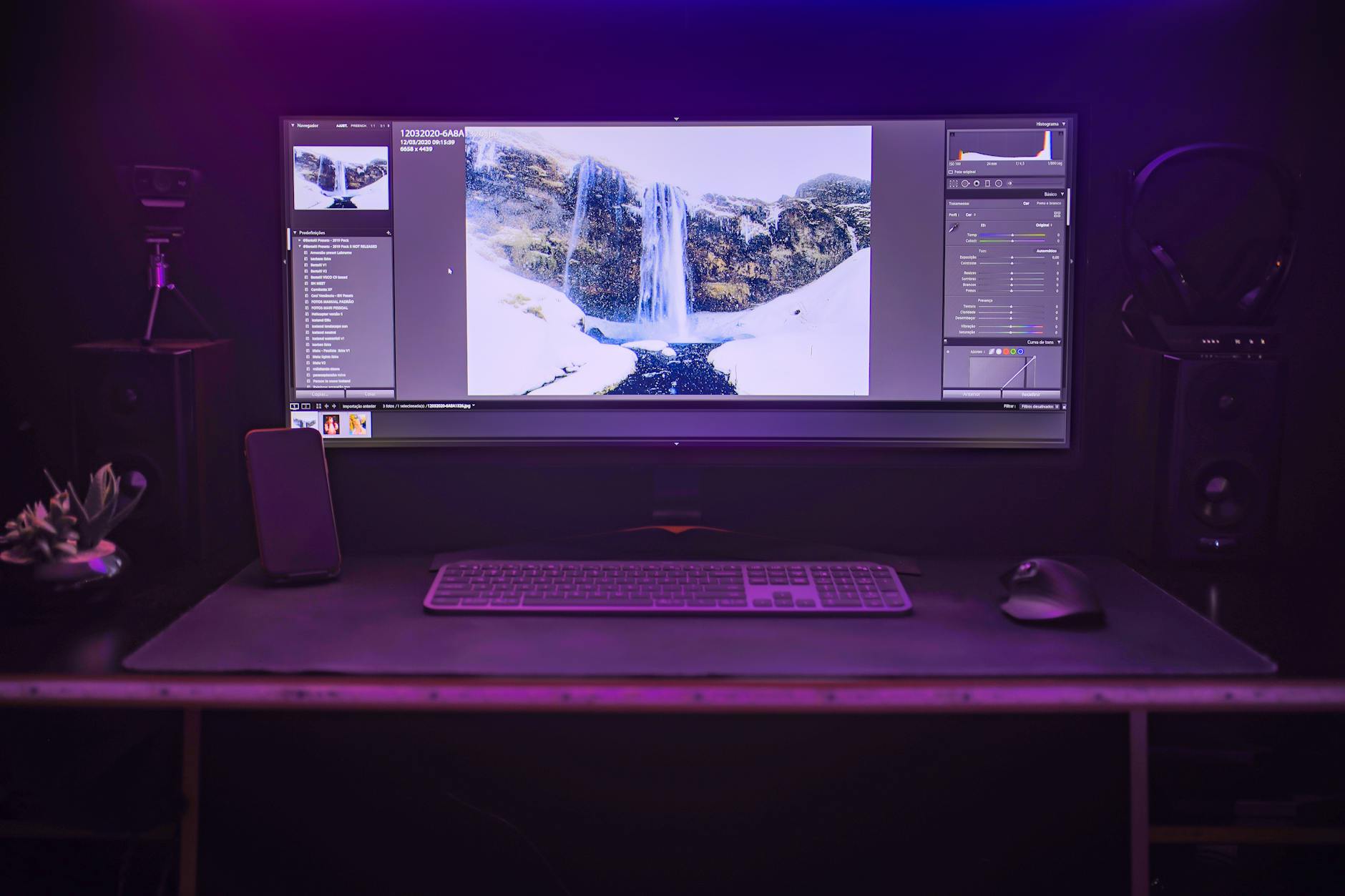
Choose an Ultrawide Monitor if: You value a clean, minimalist desk. Your primary work involves wide timelines (video/audio), massive spreadsheets, or immersive simulation. You hate the bezel gap and want a fluid, modern workflow. You’re willing to invest in a premium, hub-like display.
Choose a Dual Monitor Setup if: You thrive on strict task separation (communication vs. creation). You need flexibility to use monitors with different orientations (one landscape, one portrait). Budget is a primary concern, or you want the redundancy of two independent displays. You frequently work with multiple computers and want to assign one to each screen easily.
No matter your choice, prioritize ergonomics, connectivity, and panel quality. Your screen is your portal to your work—invest in a view that inspires you, not one that confines you.
🚀 More AI Tools You'll Love
📢 AdCreator AI — Generate Facebook & Instagram ads in 60 seconds
🌐 AI Site Builder — Complete business website in 60 seconds, free
📚 ScholarNet AI — AI study tools, Brain Battles & tutoring