
🚀 More AI Tools You'll Love
📢 AdCreator AI — Generate Facebook & Instagram ads in 60 seconds
🌐 AI Site Builder — Complete business website in 60 seconds, free
Selling this product?
Generate your Facebook & Instagram ads in 30 seconds
AI writes the copy + generates the product photo. 5 free tries, no credit card.
📚 ScholarNet AI — AI study tools, Brain Battles & tutoring
Last Updated: September 2026 by Prime Reviews Pro
📋 Table of Contents
- Why the Monitor Matters More Than Ever in 2026
- What Actually Matters: The 2026 Buying Guide
- Panel Type: IPS vs. VA vs. OLED
- Resolution and Screen Size
- Ergonomics: The Feature People Skip and Regret
- Connectivity: USB-C Is the New Baseline
- Color Accuracy and Brightness
- Refresh Rate and Eye Comfort
- Top Home Office Monitors for 2026: Compared
- 1. Dell UltraSharp U2722D — The Reliable All-Rounder
- 2. LG 32UN880-B Ergo — Best for Small Desks
- 3. BenQ PD2705U — The Designer’s Workhorse
- 4. Samsung ViewFinity S6 (S27C650) — The Value Pick
- 5. Apple Studio Display — For Mac Users Who Want Zero Friction
Top Home Office Monitors for 2026: Features You Need to Know
Upgrade your workspace with the year’s leading screens — compared by spec sheet, owner feedback, and value.
Prime Reviews Pro
Shop Related Products on Amazon
🏠 Get the Best Home Office Deals
Exclusive deals before they sell out
Shop Home office monitor on Amazon →
As an Amazon Associate, Prime Reviews Pro earns from qualifying purchases. Prices reflect listings at the time of writing and change frequently.
Why the Monitor Matters More Than Ever in 2026
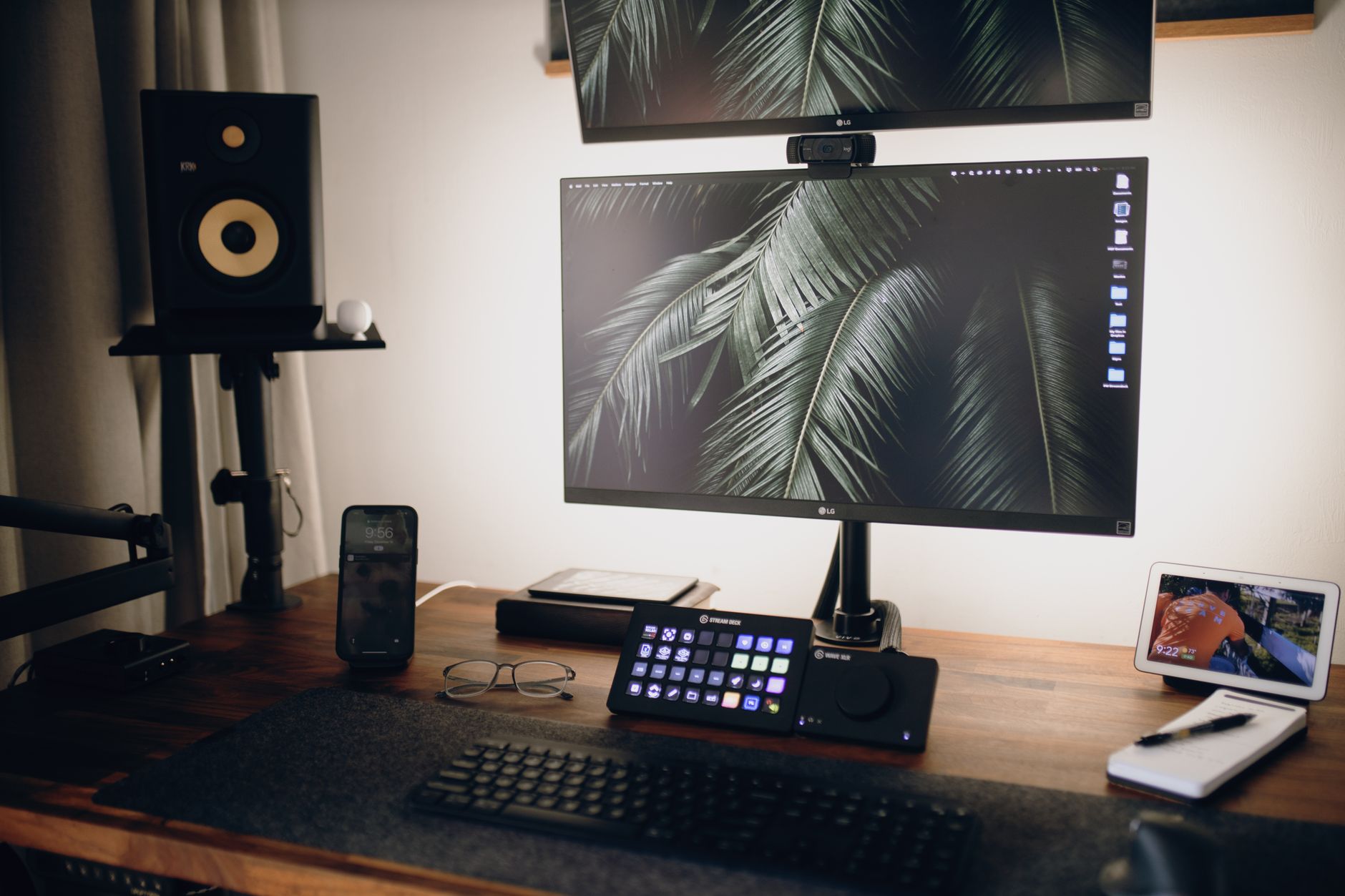
The home office stopped being a temporary arrangement years ago. In 2026, millions of knowledge workers spend the majority of their waking hours in front of a screen that they personally chose, personally paid for, and personally stare into for eight, nine, sometimes twelve hours a day. The chair gets the headlines, but the monitor is the object your eyes never leave.
That shift has changed what buyers expect. A decade ago, a “good” office monitor meant 1080p, 60Hz, and whatever panel the office manager bulk-ordered. Today’s remote worker wants USB-C docking with laptop charging, accurate color for side projects, ergonomic height and tilt adjustment, and blue-light management that doesn’t wash out the image. The spec sheets have gotten complicated — and the marketing language has gotten worse.
This guide does three things. First, it explains the features that actually matter for a home office setup in 2026, separating genuine workflow improvements from checkbox specs. Second, it compares specific models across price tiers, using manufacturer specifications and summarized owner feedback from Amazon and major review outlets. Third, it helps you match a monitor to your actual work — because the best screen for a video editor is often the wrong screen for an accountant.
We do not buy, test, or physically handle these monitors. Our value is comparison: we read the spec sheets, aggregate verified-purchase owner reviews, flag recurring complaints, and score how consistent that feedback is. When we say “owners report,” that is exactly what we mean.
What Actually Matters: The 2026 Buying Guide
Panel Type: IPS vs. VA vs. OLED
Almost every monitor worth buying for office work in 2026 uses one of three panel technologies.
IPS (In-Plane Switching) remains the default recommendation for general productivity. It offers the most stable colors across viewing angles, which matters if you frequently lean back, swivel the screen, or share your display with someone sitting beside you. The trade-off is contrast — IPS panels typically land around 1000:1, so blacks look dark gray in a dim room. For spreadsheets, documents, code, and video calls, this is fine.
VA (Vertical Alignment) panels push contrast dramatically higher — often 3000:1 or beyond — which makes dark-mode interfaces and media consumption look noticeably richer. The cost is response time and viewing-angle consistency. For a single-user desk where you sit dead-center, VA is a legitimate choice and often cheaper per inch than IPS.
OLED has finally become practical for desktop use, with 27-inch and 32-inch models now widely available. Per-pixel dimming produces infinite contrast, and response times are effectively instant. The concerns are burn-in risk with static UI elements (taskbars, ribbon menus) and price. Manufacturers have added pixel-shift and panel-refresh routines that owners report mitigate the issue, but if your workflow is eight hours of the same static application, OLED remains a calculated risk rather than a safe default.
Bottom line: IPS for mixed office work, VA if you want contrast on a budget, OLED if you do color-critical or media-heavy work and accept the maintenance routine.
Resolution and Screen Size
The practical sweet spot in 2026 is 27 inches at 2560×1440 (QHD) or 32 inches at 3840×2160 (4K).
1080p at 27 inches is no longer defensible — pixel density drops to roughly 82 PPI, and text edges look soft. 1440p at 27 inches delivers about 109 PPI, which is comfortable for extended reading. 4K at 32 inches lands near 138 PPI and gives you genuinely usable side-by-side window layouts without scaling headaches.
Ultrawide formats (34-inch 3440×1440, 49-inch 5120×1440) appeal to people who live in timelines, trading charts, or wide spreadsheets. The catch is that a single ultrawide replaces two monitors but not always gracefully — full-screen video and some legacy applications handle the aspect ratio poorly.
Ergonomics: The Feature People Skip and Regret
A monitor with no height adjustment forces you to stack books under it. That is not a joke — it is the single most common complaint in owner reviews of budget displays.
The U.S. Occupational Safety and Health Administration (OSHA’s computer workstation eTool) recommends positioning the top of the screen at or slightly below eye level, roughly 20 to 40 inches from your face, with the screen tilted back slightly. A monitor that offers height, tilt, swivel, and pivot adjustment lets you hit that position without improvised furniture. If the included stand can’t do it, budget for a VESA mount or arm.
Ergonomics research published through the National Library of Medicine (NCBI/PMC) repeatedly links poorly positioned displays to neck, shoulder, and eye strain. This is not marketing language — it is the reason height adjustment belongs in your must-have column, not your nice-to-have column.
Connectivity: USB-C Is the New Baseline
A USB-C port with DisplayPort Alternate Mode and Power Delivery lets one cable carry video, data, and laptop charging simultaneously. For anyone using a laptop as their primary machine, this single feature eliminates a docking station and a nest of cables.
Pay attention to the power delivery wattage. 65W covers most ultrabooks. 90W or more is needed for larger laptops and mobile workstations. A monitor advertising “USB-C” without specifying wattage is often delivering only 15W or 45W — enough to slow battery drain, not enough to charge.
Also count downstream USB-A and USB-B ports. A monitor with a built-in USB hub effectively becomes your dock, which is worth real money in cable management and desk clutter.
Color Accuracy and Brightness
If your work involves photography, video, design, or print preparation, look for 99% sRGB coverage at minimum, and consider wide-gamut panels covering 95%+ DCI-P3. Manufacturer spec sheets list these figures; independent reviewers verify them.
For everyone else, 250–350 nits of brightness is adequate in a controlled room. If your desk faces a window with direct sun, 400 nits or higher makes a meaningful difference.
Refresh Rate and Eye Comfort
60Hz is fine for documents. 75Hz and above genuinely reduces the perceived jitter when scrolling long pages or dragging windows, and the price premium is now negligible. Flicker-free backlights and low blue-light modes are standard on reputable brands — check for TÜV Rheinland or similar certification rather than trusting the phrase on the box.
Top Home Office Monitors for 2026: Compared
Audible has the audiobook version of most business & productivity bestsellers. Your first book is free with a 30-day trial, and you can cancel anytime.
Try Audible Free →
1. Dell UltraSharp U2722D — The Reliable All-Rounder
Dell UltraSharp U2722D 27-inch QHD Monitor
- 27-inch QHD 2560x1440 IPS
- USB-C with 90W power delivery
- 99% sRGB, factory color calibration
- Height, tilt, swivel, pivot stand
- Built-in USB hub
The U2722D is the monitor that shows up in a disproportionate number of home office setups, and the reasons are boring in the best way. The spec sheet lists a 27-inch QHD IPS panel with 99% sRGB coverage and factory calibration, a USB-C port delivering 90W of power delivery, and a fully adjustable stand including pivot to portrait.
Owners consistently report that the single-cable laptop connection works as advertised and that the panel arrives with acceptable uniformity out of the box. Recurring complaints center on the 60Hz refresh rate and the absence of HDR — both true, and both largely irrelevant for document and spreadsheet work.
- ✅ 90W USB-C charging handles most laptops
- ✅ Excellent out-of-box color accuracy
- ✅ Full ergonomic adjustment including pivot
- ✅ Three-year advanced exchange warranty
- ❌ Only 60Hz refresh rate
- ❌ No HDR support
- ❌ Contrast is average for the price
Who it’s for: Laptop-based professionals who want one cable, accurate color, and a stand that actually adjusts.
Who should skip it: Gamers, and anyone who wants a smoother scrolling experience at a higher refresh rate.
2. LG 32UN880-B Ergo — Best for Small Desks
LG 32UN880-B 32-inch 4K UHD Ergo Monitor
- 32-inch 4K UHD 3840x2160 IPS
- Ergo clamp-style stand, no desk footprint
- USB-C with 60W power delivery
- HDR10, 95% DCI-P3
- Height, tilt, swivel, pivot, extend, retract
LG’s Ergo line solves a specific problem: the desk has no room for a monitor base. The included clamp mounts to the rear edge of the desk, and the arm extends, retracts, and pivots through a wide range. Owners frequently describe reclaiming significant desk surface area as the main reason they bought it.
The panel itself is a 32-inch 4K IPS unit rated at 95% DCI-P3 with HDR10 support. The spec sheet lists 60W USB-C power delivery, which covers ultrabooks but may fall short for power-hungry 16-inch laptops under load.
Recurring owner feedback flags two things: the clamp requires a desk edge of sufficient thickness and depth, and cable routing takes some patience during initial setup. Neither is a dealbreaker, but both are worth knowing before purchase.
- ✅ Zero desk footprint with clamp mount
- ✅ Wide adjustment range including extension
- ✅ 4K resolution at a 32-inch size is comfortable
- ✅ Strong color coverage for creative side work
- ❌ 60W USB-C may underpower large laptops
- ❌ Clamp needs a compatible desk edge
- ❌ Setup and cable routing take time
Who it’s for: Anyone with a shallow or crowded desk, and 4K users who want screen real estate without a base.
Who should skip it: Anyone with a glass desk, a drawer-front edge, or a desk too thick for the clamp.
3. BenQ PD2705U — The Designer’s Workhorse
BenQ PD2705U 27-inch 4K Design Monitor
- 27-inch 4K UHD IPS
- 99% sRGB, 95% DCI-P3, Pantone validated
- USB-C with 65W power delivery
- KVM switch for two computers
- Hotkey Puck G2 controller
BenQ positions the PD2705U squarely at designers, and the spec sheet backs it up: 4K IPS, 99% sRGB, 95% DCI-P3, Pantone Validated, and factory calibration reported at Delta E ≤ 3. The included Hotkey Puck G2 lets you switch color modes and inputs with a physical dial instead of menu-diving — a small feature that owners mention far more often than you’d expect.
The built-in KVM switch is the sleeper feature. If you run a work laptop and a personal desktop on the same desk, the KVM lets one keyboard and mouse control both, switching along with the display input. Owners describe this as the reason they chose this model over cheaper 4K alternatives.
The 65W USB-C delivery is adequate for most laptops. Complaints in owner reviews tend to focus on the price relative to non-color-critical 4K panels, and on the panel’s modest contrast ratio, which is typical for IPS.
- ✅ Pantone Validated with factory calibration
- ✅ Built-in KVM for two-computer setups
- ✅ Hotkey Puck G2 simplifies mode switching
- ✅ Strong coverage of both sRGB and DCI-P3
- ❌ Premium price for a 27-inch panel
- ❌ IPS contrast is unremarkable
- ❌ 65W may be marginal for large laptops
Who it’s for: Designers, photographers, and dual-computer users who need color confidence and input flexibility.
Who should skip it: Buyers who only need documents and email — you can spend half as much.
4. Samsung ViewFinity S6 (S27C650) — The Value Pick
Samsung ViewFinity S6 27-inch QHD Monitor
- 27-inch QHD 2560x1440 IPS
- USB-C with 90W power delivery
- Built-in KVM switch
- Height, tilt, swivel, pivot stand
- 99% sRGB coverage
The ViewFinity S6 undercuts most of its competition while keeping the two features that matter most: 90W USB-C power delivery and a built-in KVM. The 27-inch QHD IPS panel is rated at 99% sRGB, and the stand offers full height, tilt, swivel, and pivot adjustment.
Owner feedback is broadly positive on the docking behavior and the stand quality at this price. The most common criticisms involve build materials — the chassis is largely plastic and feels lighter than premium options — and the absence of any wide-gamut color coverage, which rules it out for serious creative work.
- ✅ 90W USB-C at a budget price
- ✅ KVM included at this tier is rare
- ✅ Full ergonomic adjustment
- ✅ QHD resolution is the right call at 27 inches
- ❌ Plastic build feels less premium
- ❌ sRGB only, no wide gamut
- ❌ No HDR
Who it’s for: Budget-conscious buyers who still want single-cable docking and a proper adjustable stand.
Who should skip it: Color-critical creative professionals.
5. Apple Studio Display — For Mac Users Who Want Zero Friction
Apple Studio Display 27-inch 5K Retina
- 27-inch 5K Retina 5120x2880
- 600 nits brightness, P3 wide color
- Built-in 12MP Center Stage camera
- Six-speaker system with Spatial Audio
- Thunderbolt 3 with 96W power delivery
The Studio Display is expensive and unapologetic about it. The spec sheet lists a 27-inch 5K panel at 600 nits with P3 wide color, a 12MP Center Stage webcam, a six-speaker array, and Thunderbolt 3 delivering 96W to a connected Mac.
For Mac users, the appeal is integration: brightness and volume control from the keyboard, consistent color with the built-in display on a MacBook, and a camera that handles framing automatically. Owners report the panel quality and speaker output as standout strengths.
The criticisms are consistent and well documented. The stand height adjustment costs extra on some configurations. The display works with Windows PCs but loses much of its appeal there. And the price is roughly triple a comparable-spec third-party 4K panel.
- ✅ ”5K
🚀 More AI Tools You'll Love
📢 AdCreator AI — Generate Facebook & Instagram ads in 60 seconds
🌐 AI Site Builder — Complete business website in 60 seconds, free
📚 ScholarNet AI — AI study tools, Brain Battles & tutoring