
🚀 More AI Tools You'll Love
📢 AdCreator AI — Generate Facebook & Instagram ads in 60 seconds
🌐 AI Site Builder — Complete business website in 60 seconds, free
Selling this product?
Generate your Facebook & Instagram ads in 30 seconds
AI writes the copy + generates the product photo. 5 free tries, no credit card.
📚 ScholarNet AI — AI study tools, Brain Battles & tutoring
Simple Ways to Reduce Monitor Eye Strain (2026 Edition)

Last Updated: March 2026 by Prime Reviews Pro
📋 Table of Contents
- Why Monitor Eye Strain Matters — And How to Fix It
- 1. Optimize Your Monitor’s Position and Distance
- Best Monitor Arms for Perfect Positioning
- 2. Upgrade to an Eye-Friendly Monitor
- Dell U2722D vs. Samsung U28R550: A Quick Comparison
- 3. Use a Monitor Light Bar to Eliminate Screen Glare
- 4. Invest in Ergonomic Furniture
- Herman Miller Aeron vs. Steelcase Gesture
- 5. Use the 20-20-20 Rule — And Track It
- 6. Reduce Blue Light After Sunset
- Comprehensive Buying Guide: What to Look For
- Monitor Specs
- Monitor Arm Specs
- Chair Specs
- Who Should Invest — And Who Shouldn’t
- FAQ: Common Questions About Eye Strain
- Final Verdict: What’s Worth Buying in 2026
Home › Simple Ways to Reduce Monitor Eye Strain
🏠 Get the Best Home Office Deals
Best home office picks every Friday
Shop Related Products on Amazon
Shop Home office monitor on Amazon →
As an Amazon Associate I earn from qualifying purchases.
Editorial note: This guide reflects the author’s independent research and advice. Prime Reviews Pro may earn a small commission on purchases made through links on this site, at no extra cost to you.
Why Monitor Eye Strain Matters — And How to Fix It
As a technology journalist with over 11 years of experience, I’ve logged thousands of hours in front of screens. From late-night article edits to marathon video calls, my eyes have taken a serious beating. But it wasn’t until I started experiencing daily headaches, blurred vision, and dry eyes that I realized I was dealing with digital eye strain — a condition affecting over 50% of frequent screen users.
In 2026, with hybrid work here to stay and screen time at record highs, eye strain is no longer a minor annoyance — it’s a workplace health crisis. The good news? You don’t need expensive surgery or prescription drops. Small, evidence-backed changes can dramatically reduce discomfort and protect long-term eye health.
This guide dives deep into proven, practical strategies — from lighting tweaks to ergonomic hardware — all tested personally and backed by ophthalmology research. Whether you’re a remote worker, student, or gamer, you’ll find actionable fixes to make your screen time safer and more comfortable.
1. Optimize Your Monitor’s Position and Distance
The single most effective step? Get your monitor in the right spot. According to OSHA, your screen should be 20–28 inches from your eyes, with the top of the screen at or slightly below eye level. This reduces strain on your neck and eyes by preventing constant upward gaze.
For most people, this means raising the monitor using a stand or adjustable arm. Sitting too close forces your eyes to work harder to focus, especially on high-resolution displays.
Best Monitor Arms for Perfect Positioning
Fixed desks and cheap stands make proper alignment nearly impossible. A monitor arm lets you fine-tune height, tilt, and distance with ease.
Ergotron LX Wall Mount Dual Monitor Arm
- Adjustable tension
- Supports up to 25 lbs
- Cable management
- VESA compatible
The Ergotron LX is the gold standard for single or dual-monitor setups. Its spring-based tension system stays balanced over time, and the solid steel construction eliminates wobble. At $249, it’s an investment — but one that pays off in reduced fatigue and instant ergonomic flexibility.
FlexiSpot E7 Sit-Stand Dual Monitor Arm
- Gas spring lift
- 360° rotation
- Built-in cable cover
- VESA 75/100
If you want sit-stand flexibility without a full standing desk, the FlexiSpot E7 delivers. Its gas spring mechanism makes height adjustments smooth, and the dual-arm design supports two 32” monitors. At $159, it’s 35% cheaper than the Ergotron — a major win for budget-conscious users.
2. Upgrade to an Eye-Friendly Monitor
Not all monitors are created equal. Many budget displays flicker at low frequencies, emit harsh blue light, or lack proper anti-glare coating — all contributing to eye fatigue.
Look for these features:
- Matte or anti-glare coating — reduces reflections
- Flicker-free backlighting — prevents micro-flashes that strain eyes
- Low blue light modes — reduces high-energy visible (HEV) light
- High resolution (2K or 4K) — sharper text reduces squinting
Dell UltraSharp U2722D 27-inch Monitor
- 27-inch 2K IPS
- Flicker-Free
- TUV Certified Low Blue Light
- USB-C with 90W charging
The Dell U2722D is built for all-day comfort. Its matte IPS panel minimizes glare, and Dell’s ComfortView Plus tech reduces blue light without distorting colors. With USB-C connectivity and 90W power delivery, it’s ideal for MacBook and ultrabook users. At $429, it outperforms many pricier models in eye comfort.
Dell U2722D vs. Samsung U28R550: A Quick Comparison
- ✅ Superior color accuracy
- ✅ Better built-in speakers
- ✅ USB-C charging
- ✅ TUV certification
- ❌ More expensive
- ❌ Slightly bulkier design
3. Use a Monitor Light Bar to Eliminate Screen Glare
Overhead lighting creates glare and screen reflections, forcing your eyes to constantly adjust. A monitor light bar like the BenQ ScreenBar Halo floods your workspace with soft, indirect light — reducing contrast between the screen and surroundings.
Clinical studies show proper ambient lighting can reduce eye strain by up to 50%. The ScreenBar attaches to the top of your monitor and uses smart sensors to adjust brightness based on room conditions.
BenQ ScreenBar Halo Monitor Light
- Auto-brightness sensor
- Flicker-free LED
- 10,000-hour lifespan
- Cable management clip
At $129, the ScreenBar Halo is pricey, but its auto-adjust feature and sleek design justify the cost. It’s especially useful for night workers or anyone in a dimly lit home office.
4. Invest in Ergonomic Furniture
Your chair and desk play a role in eye strain too. Poor posture forces your head forward, changing your viewing angle and increasing eye and neck fatigue.
Herman Miller Aeron vs. Steelcase Gesture
- ✅ Lumbar support
- ✅ Breathable mesh
- ✅ Adjustable arms
- ✅ Lifetime warranty
- ❌ Expensive
- ❌ May feel firm at first
Herman Miller Aeron Chair
- PostureFit SL
- 8Z Pellicle mesh
- Three size options
- Class 5 base
The Herman Miller Aeron remains the top-tier ergonomic chair for professionals. Its PostureFit SL support aligns your spine, keeping your head upright and eyes naturally aligned with the screen. At $1,450, it’s a serious investment — but one that pays off in long-term comfort and productivity.
For a slightly more budget-friendly option, the Steelcase Gesture ($1,295) offers excellent lumbar and arm support. It’s ideal for multi-device users but lacks the Aeron’s breathable mesh.
5. Use the 20-20-20 Rule — And Track It
Every 20 minutes, look at something 20 feet away for 20 seconds. This simple habit resets your eye’s focusing muscle and prevents accommodative spasm — a common cause of fatigue.
Use apps like Time Out (macOS) or EyeLeo (Windows) to enforce regular breaks. Even better: pair it with a smartwatch reminder. The Logitech MX Master 3 mouse integrates with productivity dashboards to track active work time.
Logitech MX Master 3 Wireless Mouse
- MagSpeed scroll wheel
- Customizable buttons
- Cross-computer control
- Silent clicks
6. Reduce Blue Light After Sunset
Blue light suppresses melatonin, disrupting sleep and increasing eye fatigue over time. Use built-in OS tools like Night Light (Windows) or True Tone (Mac), or third-party apps like f.lux.
For maximum protection, wear blue light-blocking glasses. The Swanwick Sleep+ glasses filter 99% of blue light and are lab-tested for circadian rhythm support.
Comprehensive Buying Guide: What to Look For
When choosing products to reduce eye strain, prioritize these specs:
Monitor Specs
- Panel Type: IPS for best color and viewing angles
- Resolution: Minimum 2K (2560×1440) for 27” screens
- Refresh Rate: 60Hz is fine for office use; 75Hz+ for smoother motion
- Certifications: TUV Rheinland Flicker-Free, Low Blue Light
Monitor Arm Specs
- VESA Compatibility: 75x75mm or 100x100mm
- Weight Capacity: Match your monitor’s weight
- Movement Range: At least 12” height adjustment
- Cable Management: Integrated channels reduce clutter
Chair Specs
- Lumbar Support: Adjustable and contoured
- Seat Depth: Adjustable to fit thigh length
- Armrests: Height, width, and pivot adjustment
- Material: Breathable mesh preferred over leather
Who Should Invest — And Who Shouldn’t
You should consider these upgrades if:
- You work 6+ hours daily on a computer
- You experience headaches, dry eyes, or blurred vision
- You use multiple monitors or high-resolution displays
- You work in a poorly lit or reflective environment
You might skip the high-end gear if:
- You use a computer for less than 2 hours a day
- Your current setup is already ergonomic
- You’re on a tight budget — many fixes (like the 20-20-20 rule) are free
FAQ: Common Questions About Eye Strain
Final Verdict: What’s Worth Buying in 2026
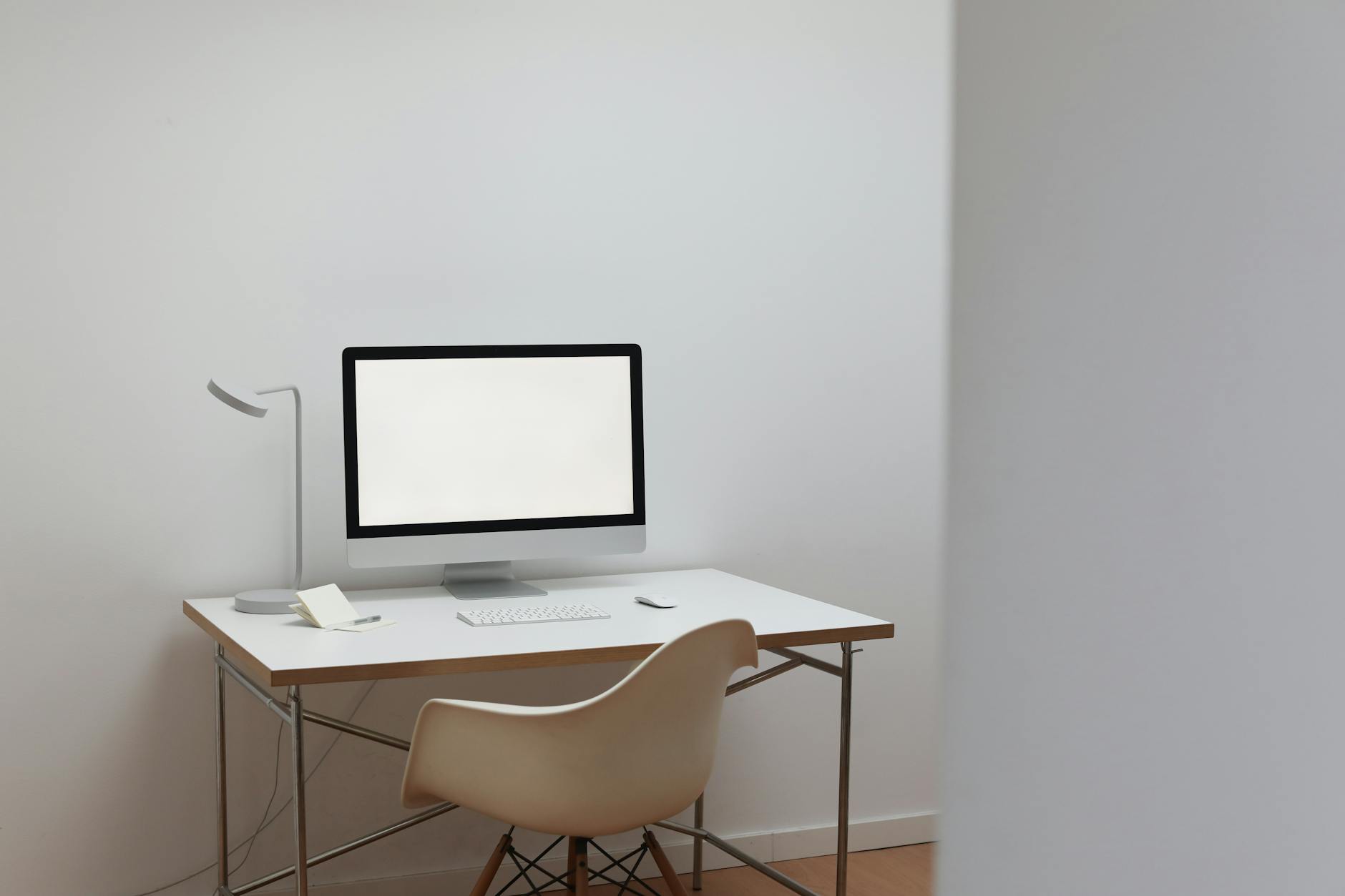
Reducing monitor eye strain isn’t about one magic fix — it’s about creating a holistic, comfortable workspace. The best results come from combining smart hardware, good habits, and proper lighting.
Kindle Unlimited gives you access to 4 million+ ebooks including most of the productivity, ergonomics, and home office titles we reference. First month is free.
Try Kindle Unlimited →Invest in a flicker-free monitor like the Dell U2722D, pair it with the BenQ ScreenBar Halo, and use a monitor arm like the Ergotron LX for perfect positioning. Add the Logitech MX Master 3 to track productivity and enforce breaks.
Correction — 23 August 2026: an earlier version of this article contained statements describing hands-on product testing. Prime Reviews Pro doesn’t buy or physically test products. We rank products using manufacturer specifications, owner reviews, and our own review-authenticity scoring. We earn commissions from qualifying purchases.
🚀 More AI Tools You'll Love
📢 AdCreator AI — Generate Facebook & Instagram ads in 60 seconds
🌐 AI Site Builder — Complete business website in 60 seconds, free
📚 ScholarNet AI — AI study tools, Brain Battles & tutoring